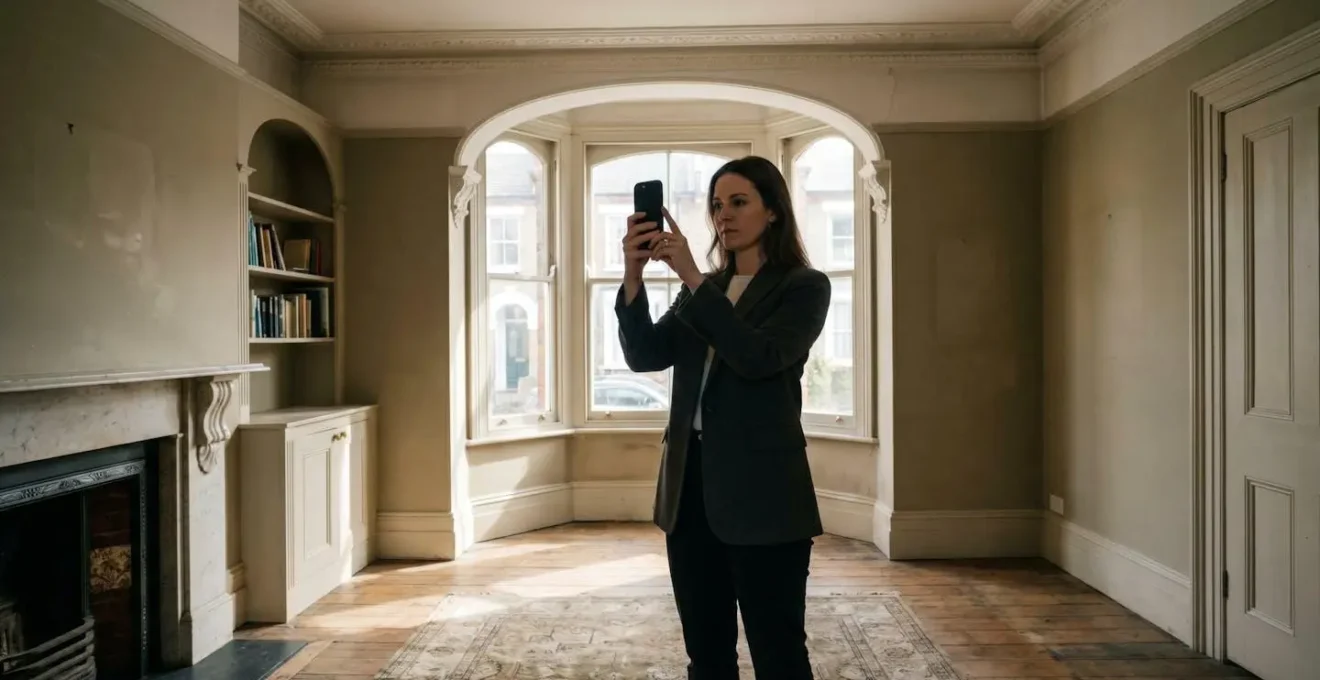
Using your phone’s LiDAR isn’t a gimmick; it’s the single best way for a DIY renovator to de-risk a UK home project and save money.
- It provides millimetre-accurate measurements that prevent expensive errors in flooring and bespoke joinery.
- It creates professional-grade files (IFC format) that streamline communication and data sharing with architects and builders.
Recommendation: Start by mastering a simple room scan to accurately calculate heating needs (BTUs) and see the financial benefit for yourself.
If you’re a homeowner planning a kitchen refit or an extension, you know the fear. The fear that a single slip of the tape measure could lead to a kitchen worktop that doesn’t fit, or ordering hundreds of pounds worth of the wrong flooring. For decades, these small but costly errors have been an accepted part of the renovation lottery. Many have heard that modern iPhones can create 3D scans of a room, but dismiss it as a fun trick for augmented reality games or placing virtual furniture.
But what if that “trick” is actually the most powerful risk-management tool you can hold in your hand? The true value of LiDAR for a UK home renovator isn’t just about getting slightly better measurements. It’s about a fundamental shift from guesswork to certainty. It’s about preventing specific, expensive, and all-too-common renovation disasters before they happen, and communicating with your architect or builder with a level of precision they’ll thank you for. This technology isn’t a gadget; it’s an insurance policy against the wonky walls of a Victorian terrace and the complex angles of a modern extension.
This guide will demystify the process. We will move beyond the basics and show you how to create genuinely useful 3D models, how to share them without data loss, and how to use this data to make tangible savings on your project. We’ll explore the common pitfalls, from scan failures in tricky lighting to the one measuring mistake that could cost you dearly, and provide practical, encouraging steps to make you a confident user of this transformative technology.
Contents: Your LiDAR Renovation Blueprint
- Why Do Your Room Scans Fail in Low Light Conditions?
- How to Send Your Phone Scans to an Architect Without Data Loss?
- The Measuring Mistake That Could Cost You £500 in Flooring
- LiDAR or Photogrammetry: Which Is Better for 3D Printing Objects?
- How to Walk a Room to Create a Glitch-Free 3D Model?
- How to Turn Off Everything in Your House With One Tap?
- The Pocket Mistake That Makes Your Screen Shatter Easier
- How to Control Your UK Heating Remotely to Save on Bills?
Why Do Your Room Scans Fail in Low Light Conditions?
It’s a common misconception that low light is the primary enemy of LiDAR scanning. While photogrammetry (which uses your phone’s regular camera) fails in the dark, LiDAR (Light Detection and Ranging) is an active sensor. It fires out its own invisible laser light and measures the time it takes for reflections to return, building a 3D map of the space. This means it can technically “see” in perfect darkness. So, why do scans still sometimes fail or become glitchy in a dimly lit room?
The real culprits are not the absence of light, but the properties of the surfaces the LiDAR is trying to measure. The two main enemies are: highly absorbent surfaces (like black velvet curtains or dark matte paint) which can absorb the laser pulse, giving no data back; and highly reflective or transparent surfaces (like mirrors, glass, or glossy kitchen cabinets). These surfaces scatter the laser beam or let it pass through, creating confusing or false readings. In fact, research demonstrates that reflective surfaces in a scan can cause a significant loss of data points, leading to “holes” in your 3D model.
To get a clean scan, your focus should be less on adding bright overhead lights and more on managing these problematic surfaces. Cover mirrors with a sheet, draw blinds over large glass doors, and be aware that a freshly painted, dark feature wall might require a slower, more deliberate scanning motion to capture accurately. It’s not about the darkness of the room, but the “darkness” of the materials within it.
How to Send Your Phone Scans to an Architect Without Data Loss?
You’ve spent an hour meticulously scanning your property, capturing every nook and cranny. You hit “export,” email a file to your architect, and they can’t open it. This is a common and frustrating breakdown in the workflow, but it’s easily avoided by understanding what professionals need. The key isn’t the 3D model itself, but the format it’s in. While your scanning app might default to formats like OBJ or USDZ (great for 3D graphics), architects work within a highly structured ecosystem called Building Information Modelling (BIM).
A study on UK architectural workflows highlights that the gold standard for sharing data between different software is the IFC (Industry Foundation Classes) format. Think of it as the PDF of the 3D building world—a universal translator. When you export your scan as an IFC file, you’re not just sending a pretty picture; you’re sending a data-rich model that your architect’s software (be it Revit, ArchiCAD, or another platform) can understand and measure accurately. This is so critical that IFC is often mandated for UK public sector projects. It ensures the geometric data and spatial relationships you’ve captured are preserved perfectly.
To ensure a smooth handover, your communication should be as professional as your file format. When emailing your architect, don’t just attach the file. Provide context. Here are the key elements your email should contain:
- Subject Line: Include the property address and scan date (e.g., “LiDAR Scan – 123 Coronation Street – 15/03/2024”).
- Attachments: Attach the primary .ifc file and a secondary PDF floor plan view for quick reference.
- Scan Details: State the app used (e.g., Polycam, Canvas) and the stated accuracy level (e.g., ±1-2cm).
- Project Goals: Briefly outline your objectives (e.g., “Scan for proposed rear extension and internal wall removal”).
- Areas of Note: Mention any areas that were hard to scan or may need manual verification, like behind a large sofa or inside a chimney breast.
- Confirmation Request: Ask them to confirm they have received the file and can open it correctly.
The Measuring Mistake That Could Cost You £500 in Flooring
In a perfectly square, modern room, a tape measure might suffice. But in the UK, especially in period properties, perfectly square rooms are a rarity. Consider a typical Victorian living room with its chimney breast, twin alcoves, and a slightly bowed bay window. Manually measuring this space for new flooring is a minefield of potential errors. Do you measure wall to wall and subtract the chimney? How do you account for the non-standard angles of the alcoves? Get it wrong, and the consequences are costly.
Flooring suppliers often recommend adding a 10% wastage allowance for straight-lay patterns. However, for more complex patterns like herringbone, UK flooring installers recommend a wastage allowance of 15-20%. These allowances are designed to account for cuts, but they can’t cover a fundamental miscalculation of the room’s area. If you under-order, you face paying for an emergency top-up order (often at a higher price), with the added risk that the new batch won’t perfectly match the colour of the first. This scenario can easily add £500 or more to your flooring bill in materials and delayed labour.
This is where LiDAR scanning transitions from a novelty to a powerful money-saving tool. A real-world case documented by UK flooring insurance providers highlighted a project where tape measure errors in an office space led to a 15% material shortage, costing the client an extra £8,500. For a homeowner, the stakes might be lower, but the principle is the same. A LiDAR scan captures the room’s true, irregular geometry with millimetre precision. The app can then calculate the exact square meterage, not of a perfect rectangle, but of the actual, complex floor plan. This eliminates the guesswork, allowing you to order materials with confidence, knowing you have just enough, but not too much.
LiDAR or Photogrammetry: Which Is Better for 3D Printing Objects?
When discussing 3D scanning on a phone, two technologies are often mentioned: LiDAR and Photogrammetry. They are not interchangeable. Choosing the right one depends entirely on your goal. Think of it as choosing between a surveyor’s laser measure and a portrait photographer’s camera; both capture information, but for very different purposes.
LiDAR is for measuring space and structure. It excels at capturing the dimensions of a room, the position of walls, and the volume of a space. Its accuracy is construction-grade, but it can miss fine surface details and textures. Photogrammetry, on the other hand, works by taking hundreds of photos of an object from every angle and using software to stitch them into a 3D model. It is superb at capturing intricate shape, texture, and colour. It’s less accurate for large-scale measurements but unbeatable for capturing the fine detail of an object you want to replicate.
For a UK home renovation, you will likely need both. You use LiDAR to create the accurate base model of the room for planning your extension. But what if you need to replace a section of a damaged, ornate Victorian skirting board or want to 3D print a replica of a unique ceiling rose for a Listed Building Consent application? That is a job for photogrammetry. You would use an app that supports this method to capture the fine, sculptural details of the plasterwork, creating a model perfect for digital replication or 3D printing. A direct comparison highlights their distinct roles.
| Factor | LiDAR (iPhone/iPad Pro) | Photogrammetry (Any Camera) |
|---|---|---|
| Primary Use Case | Room layout and structural measurements for knock-throughs and extensions | Capturing decorative architectural details for replication (coving, ceiling roses, corbels) |
| Accuracy | ±2-4mm (construction-grade precision) | ±5-15mm (aesthetic accuracy, depends on lighting) |
| Best For | Planning Permission drawings, calculating room volumes, fitting bespoke joinery | Listed Building Consent applications, replicating period features, creating 3D printable models of ornamental details |
| Lighting Requirements | Works in any lighting condition including darkness | Requires consistent, even lighting; fails in shadows or high contrast |
| UK Renovation Application | Measuring wonky walls for kitchen cabinets, calculating radiator BTU requirements based on room volume | Creating digital twins of Victorian skirting boards, capturing terracotta ridge tiles for matching replacements |
| Processing Time | Real-time 3D model generation during scan | Requires 30-60 minutes of computational processing after photo capture |
| Equipment Cost | £999-£1,299 (iPhone 12 Pro or later with LiDAR) | Free to £500 (any smartphone or camera plus free software like Meshroom) |
How to Walk a Room to Create a Glitch-Free 3D Model?
Creating an accurate 3D model is less about advanced technology and more about a methodical, disciplined process. A rushed or erratic scan will produce a glitchy, unusable model. The key is to think like a human scanner: move slowly, steadily, and deliberately. Your phone’s LiDAR sensor is painting the room with invisible light, and you need to give it time to capture every surface.
The “UK Home Walkthrough Technique” is designed for the specific challenges of British housing stock. Start at the room’s entrance, with your back to the doorway, holding your device at chest height. Begin by slowly panning across the wall opposite you. Your movement should be smooth, about 30cm per second. When you encounter a common feature like a 1930s-style bay window, pause your main sweep. Perform a dedicated, slow pan that captures all three (or more) planes of the window before you continue along the wall. At each corner, slow right down and angle the device 45 degrees into the intersection to ensure it captures both connecting walls cleanly.
For classic Victorian chimney breasts and alcoves, don’t try to scan them in one pass. Scan the main wall face first. Then, treat each alcove as a mini-room, performing a separate, detailed sweep to capture its depth and back wall. In narrow Victorian terrace hallways, one pass is often not enough; perform two full passes, one hugging each long wall, to ensure complete coverage. After capturing all walls, finish by tilting the device up to paint the ceiling and down to paint the floor. Before you hit “finish,” always review the on-screen model. Most apps will highlight unscanned areas (often in orange or red). If you see these “holidays,” you can rescan just that small patch immediately, saving you from having to do the whole room again.
Your Pre-Scan Audit Checklist
- Prep the Space: Remove clutter and small furniture. Cover mirrors and large glass surfaces. Open all internal doors for a multi-room scan.
- Check Your Tech: Ensure your phone has at least 50% battery. Close all other apps and check that your scanning app is fully updated.
- Define Your Goal: Are you scanning for a quick floor plan (low detail) or for fitting bespoke cabinets (high detail)? Adjust your app’s settings accordingly.
- Plan Your Path: Mentally walk your scanning route before you begin. Identify tricky areas like bay windows or alcoves and plan how you’ll approach them.
- Test a Small Area: Before scanning the whole house, scan a small, simple room first. Check the resulting model to ensure everything is working as expected.
How to Turn Off Everything in Your House With One Tap?
The idea of a single “master off” switch that shuts down all non-essential lights and appliances is a cornerstone of smart home convenience and energy saving. But how do you get there? A truly robust and reliable smart home system isn’t just about buying a few smart plugs; it’s about intelligent design and planning, and that planning starts with data—specifically, spatial data.
This is where your LiDAR scan becomes the foundational layer for your future smart home. Before you can effectively automate a space, you need a perfect digital blueprint of it. A precise 3D model of your home allows you or a smart home installer to plan the entire system with incredible accuracy before a single hole is drilled. You can virtually place Wi-Fi access points to ensure complete coverage, plan the location of motion sensors for optimal activation, and map out cable runs for powered blinds or smart lighting, navigating around the often-unpredictable joists of an older UK property.
The 3D model acts as the “digital twin” of your house. It’s used to determine where the central hub (the “brain” of the system) should be located for the strongest signal. It helps identify the best spots for smart thermostats away from drafts or direct heat. Essentially, the LiDAR scan provides the unwavering, accurate context that a smart system needs to operate effectively. The “one-tap” shutdown feature is the end result of a system that knows exactly where every light, socket, and sensor is located within the geometric certainty of your home’s 3D model. Without that accurate base map, you’re just placing devices and hoping for the best.
The Pocket Mistake That Makes Your Screen Shatter Easier
Your LiDAR-equipped iPhone or iPad is no longer just a phone; for the duration of your renovation, it is the most critical measurement and data-capture tool you own. It holds the blueprint for your kitchen, the exact dimensions for your flooring, and the data your architect needs. Protecting this device on a messy, hazardous building site is as important as protecting your power tools. The classic “pocket mistake”—shoving a phone into a pocket with keys, screws, or a loose tape measure—is magnified tenfold in this environment.
A building site is hostile territory for consumer electronics. Dust, particularly plaster and cement dust, is abrasive and can scratch the delicate LiDAR sensor and camera lenses, degrading the quality of your scans. A seemingly innocuous bump against a scaffold pole or a short drop onto a subfloor can be catastrophic. The “pocket mistake” here isn’t just about screen damage; it’s about project-halting data loss if the device is broken.
Treat your scanning device with the respect of a professional instrument. Invest in a rugged, “construction-grade” case that offers drop protection and has raised edges to protect the screen and camera block. When on-site, dedicate a clean, zipped pocket for the phone, free from any other objects. Before every scan, take a moment to clean the lenses and LiDAR sensor with a microfibre cloth to remove any dust that could interfere with the readings. You wouldn’t leave a precision saw out in the rain; don’t leave your project’s master data file vulnerable to the predictable hazards of a renovation site. Protecting your tool is protecting your project.
Key Takeaways
- LiDAR is a risk management tool for renovations, not just a gadget for 3D models.
- Exporting scans in the universal IFC format is crucial for seamless collaboration with UK architects.
- Accurate room volume data from a LiDAR scan is the key to correctly sizing radiators and optimising your heating system.
How to Control Your UK Heating Remotely to Save on Bills?
With UK energy prices remaining a major concern for homeowners, optimising your heating system has moved from a “nice-to-have” to a financial necessity. The promise of smart thermostats like Hive, Nest, or Tado is remote control and scheduling, but their effectiveness is fundamentally limited by a simple question: is your radiator powerful enough for your room in the first place? Installing a smart TRV on an undersized radiator is like putting a clever driver in an underpowered car; you can control it perfectly, but it will never perform well.
The key to correctly sizing a radiator is calculating the room’s required heat output, measured in British Thermal Units (BTUs). This calculation depends on many factors, but the most important one is the precise volume of the room (length × width × height). This is where a simple tape measure often fails, especially with varying ceiling heights or in loft conversions. This is also where your LiDAR scan becomes an incredibly powerful tool. Research shows that iPhone LiDAR delivers millimeter-precise 3D geometry, allowing you to calculate room volume with an accuracy that was previously only available to professionals.
The “Scan-to-Simulate” workflow is simple but transformative. First, perform a complete LiDAR scan of the room. Second, use the app’s built-in tools to get the precise volume in cubic metres. Third, use this figure in an online BTU calculator to determine the exact heat output required. Now, when you shop for radiators or consult a heating engineer, you are armed with data, not guesswork. The 3D model also allows you to plan the ideal radiator position, avoiding “thermal dead zones” near drafty windows, and to place your smart thermostat’s sensor in the most representative part of the room. This data-driven approach ensures your smart heating system is not only convenient but also truly efficient, saving you real money on your bills.
Your journey to a smarter, less stressful, and more cost-effective renovation starts with a single, accurate scan. Pick one room—perhaps the one you’re planning to redecorate first—and follow the steps in this guide. Calculate its volume, check the BTU requirement for its radiator, and experience the confidence that comes from replacing guesswork with geometric certainty. This is the new foundation of DIY home improvement.