
The myth: The right app solves mobile document chaos. The reality: Your operational discipline is what prevents sync conflicts, data leaks, and formatting corruption.
- Proactive sync protocols and understanding offline modes are more critical than app features for maintaining version integrity.
- A clear device and software philosophy—understanding the inherent risks of each—reduces errors far more than chasing the “best” hardware.
Recommendation: Implement a tiered workflow that matches your tasks to the current connectivity quality, turning unpredictable travel time into structured, productive sessions.
For any project manager, the scenario is painfully familiar. You’re on a train, using the intermittent Wi-Fi to make crucial last-minute edits to a proposal. You hit “save,” and the dreaded “version conflict” error appears. Panic sets in. Has the team been working on an old version for the last hour? This is the moment when the promise of mobile productivity shatters, replaced by the reality of digital chaos. The common advice—get a better app, find a stronger signal—misses the point entirely. These are merely tactical fixes for a strategic problem.
The most popular apps like Google Suite and Microsoft 365 offer a powerful arsenal of features, but they are just tools. Relying on them without a system is like giving a master chef dull knives. The true source of mobile productivity isn’t found in an app store download; it’s forged in process and discipline. But what if the real solution isn’t about which app you use, but about mastering the operational discipline to pre-empt failure? The key is to shift from being a reactive user of technology to a proactive architect of your mobile workflow.
This guide provides that architectural blueprint. We will move beyond features to focus on the systems and protocols that prevent the silent killers of remote work: sync conflicts, data leaks, and formatting corruption. It’s a framework for turning your commute into a secure and efficient extension of your office.
To navigate the complexities of mobile work, this article breaks down the essential strategies into a clear, actionable path. The following sections will guide you through mastering everything from offline sync integrity to device selection, providing a comprehensive system for stress-free productivity on the move.
Summary: Mastering Mobile Document Editing Without the Chaos
- Why You Need Offline Mode for Document Editing on UK Trains?
- How to Review Legal Contracts on a Phone Screen Without Missing Details?
- The Copy-Paste Risk That Leaks Company Data to Other Apps
- Office or G-Suite: Which App Breaks Formatting Less on Mobile?
- How to Set Alerts for Specific Comments Only?
- iPad Pro or MacBook Air: Which Fits Better on an Economy Train Table?
- Why Does Your App Freeze When Loading Data?
- How to Set Up a Mobile Office on the Train to London Without Stress?
Why You Need Offline Mode for Document Editing on UK Trains?
The patchy connectivity on a train journey is the ultimate stress test for any collaborative document. Each time your connection drops, you create a potential timeline split, a new version of reality where you and your team are no longer in sync. This is where most version conflicts are born. Relying on a constant connection is a recipe for disaster; mastering sync integrity through disciplined offline work is the professional solution. True mobile productivity is not about being always online, but about being effective when you’re predictably offline.
The challenge isn’t just about saving your work; it’s about how the platform resolves changes when you reconnect. As explained in a detailed breakdown of how OneDrive handles sync conflicts, when automatic merges are not possible, the user is forced into a manual, time-consuming resolution process. This is the moment of chaos you must prevent. Google Docs uses a different model, but the core principle remains: you cannot trust an unstable connection to manage complex collaboration in real-time. The only robust strategy is to prepare for disconnection.
Your Pre-Departure Sync Integrity Checklist
- Device Storage Check: Confirm you have ample free space. Offline documents require local storage, and a full drive will cause sync to fail silently.
- Enable Offline Mode: Go into your app’s settings and actively enable offline access. Note that some services, like Google Docs, only allow one account per browser profile to be enabled.
- Pre-Open Critical Documents: Before you lose your connection, open every document you plan to work on. This forces a fresh sync and ensures the latest version is cached locally.
- Verify App Versions: An outdated app is a primary cause of sync failures. Check for and install any updates before you leave the office or home.
- Run a Conflict Drill: Intentionally create a small, harmless conflict by editing a test document offline while a colleague edits it online. Understanding how your chosen app presents the conflict and a merge resolution is a critical skill to learn in a controlled setting.
Treating your departure like a flight pre-check, with a formal protocol for syncing documents, transforms an unpredictable risk into a managed process. This isn’t just a technical task; it’s a fundamental part of a project manager’s operational discipline.
How to Review Legal Contracts on a Phone Screen Without Missing Details?
Reviewing a dense legal contract on a small phone screen feels like performing surgery with a sledgehammer. The risk of missing a critical clause, a misplaced decimal, or an incorrect name is immense. The default action is to pinch-and-zoom, scrolling endlessly, which fatigues the eyes and brain, making errors more likely. The solution is not to read the document from top to bottom, but to transform the review into a forensic, targeted query process. You are not reading; you are interrogating the document for specific pieces of information.
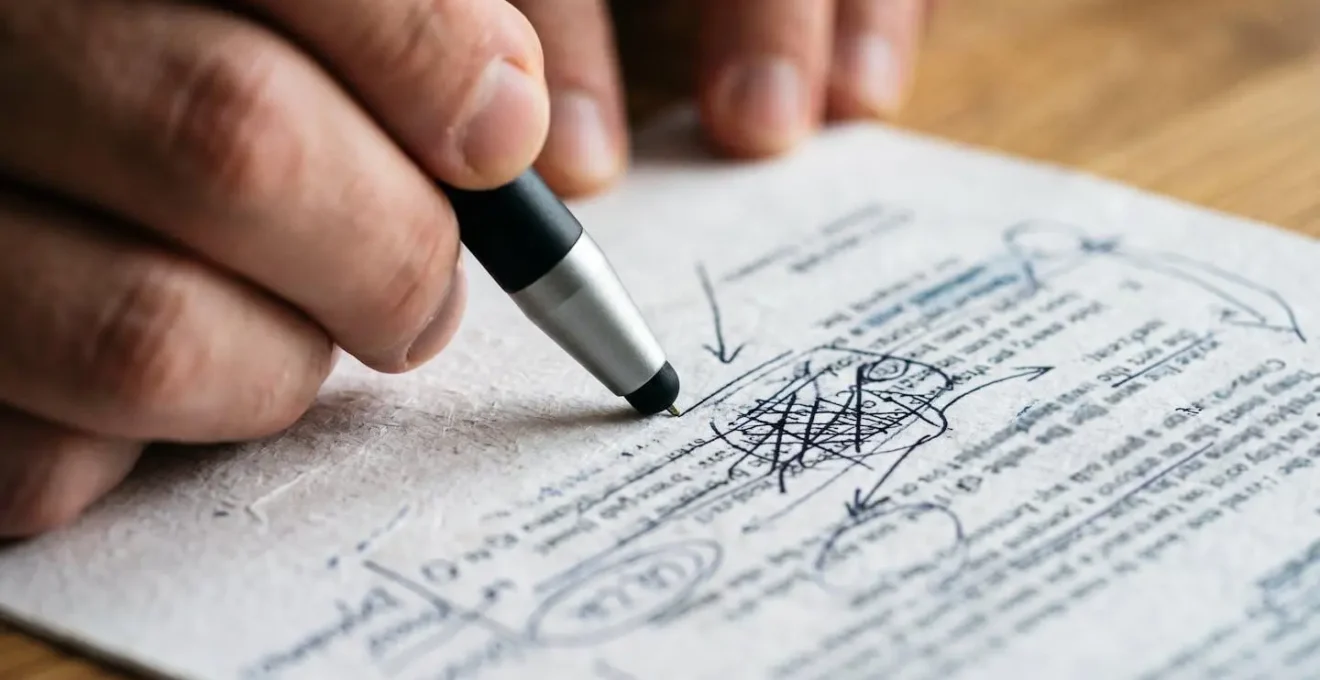
This methodological approach shifts the focus from passive consumption to active verification. Instead of getting lost in boilerplate language, you use the device’s tools to hunt for key terms and verify critical data points. This is the essence of maintaining professional diligence in a compromised viewing environment. Your phone is no longer a poor substitute for a monitor, but a precise tool for targeted verification.
To execute this effectively, adopt a multi-pass system. Each pass has a single, clear objective. This structured approach minimizes cognitive load and drastically reduces the chance of oversight. Here is a proven protocol for mobile contract review:
- Pass 1: Party Details. Use the “Find” function to locate all instances of party names, addresses, and defined roles. Verify their spelling and consistency throughout the document.
- Pass 2: Critical Dates. Search for “start date,” “end date,” “renewal,” “notice period,” and any key milestone dates. Check that they align with the negotiated terms.
- Pass 3: Financials and Key Terms. Search for all currency symbols (€, $, £) and specific keywords like “liability,” “indemnity,” “exclusivity,” or “termination.” Scrutinize these clauses one by one.
- Pass 4: Flag for Desktop Review. For any clause that seems ambiguous or requires deeper consideration, use the comment feature to @-mention yourself or a legal expert with a note like “@Me: Final check on a large screen.” Never grant final approval on a complex clause from a mobile device; use mobile for triage and initial verification only.
This system turns a daunting task into a manageable series of micro-tasks. It acknowledges the limitations of the screen and builds a safety net to ensure no detail is missed, upholding your responsibility as a project manager.
The Copy-Paste Risk That Leaks Company Data to Other Apps
The universal clipboard, seamlessly syncing what you copy on your work laptop to your personal phone, is marketed as a productivity feature. For a project manager, it’s a ticking time bomb. Every time you copy sensitive information—a client’s financial data, a snippet of legal text, an internal password—it resides in a digital limbo, easily pasted into a personal messaging app, a social media platform, or a notes app synced to a personal cloud. This is not a hypothetical risk; it’s a primary vector for data leakage in a remote work environment.
This vulnerability is compounded by the fact that many corporate security systems are not configured to manage these mobile endpoints effectively. In fact, startling research from Group-IB found that over 27.5% of MDM service interfaces are accessible from the public internet, creating a significant attack surface. The solution lies in establishing a strict “Clipboard Hygiene” protocol, an operational discipline that treats the clipboard not as a convenience, but as a controlled substance.
Implementing this protocol requires a combination of technical controls and user behaviour modification. A project manager must champion this discipline within their team to safeguard company and client data. The goal is to make the secure path the easiest path.
- Rule 1: Segregate Devices. Disable Universal Clipboard and similar continuity features between work-managed devices and personal devices. The small inconvenience of re-typing information is infinitely preferable to a data breach.
- Rule 2: Leverage MDM Policies. Work with your IT department to deploy Mobile Device Management (MDM) policies that can restrict clipboard sharing between managed (work) and unmanaged (personal) apps, or automatically clear the clipboard after a short period.
- Rule 3: Use “Share” Over “Copy”. Train your team to use the in-app “Share” function instead of copy-paste. The Share Sheet often provides more granular control, better logging, and ensures data stays within approved application workflows.
- Rule 4: Enable OS-Level Alarms. Configure and encourage the use of modern OS features, like iOS 14+’s paste notifications, which alert the user whenever an app accesses the clipboard. Treat this alert as a data leak alarm system.
- Rule 5: Embrace Containerization. On Bring-Your-Own-Device (BYOD) scenarios, insist on using containerized work apps (like Microsoft Intune or VMWare Workspace ONE) that create an encrypted, firewalled “work profile” on the device, preventing data from being pasted out of the secure container.
Clipboard Hygiene is a critical component of modern remote work security. It’s an active, ongoing practice that protects the organization from the seemingly innocent act of copying and pasting text.
Office or G-Suite: Which App Breaks Formatting Less on Mobile?
The question of whether Microsoft Office or Google G-Suite handles mobile formatting better is a trap. It prompts a debate about features, when the real answer lies in understanding the core philosophy of each ecosystem. Choosing the right one is not about finding the “best” app, but about aligning your team’s workflow with the platform’s inherent design. One prioritizes desktop fidelity, while the other prioritizes web-native collaboration. A mismatch between your needs and the platform’s philosophy is the true source of formatting breaks.
Microsoft Word is built on a legacy of print and desktop publishing. Its strength is maintaining high-fidelity, complex formatting that originated on a desktop. Google Docs was born on the web. Its strength is real-time collaboration and predictable rendering across any device with a browser, achieved by simplifying and standardizing formatting. Neither is inherently “better,” but they are fundamentally different. As the project manager, your job is to choose the philosophy that best mitigates risk for your specific types of documents.
The following comparison, based on a detailed analysis of mobile document handling, reframes the choice from features to strategic fit.
| Aspect | Google Docs (G-Suite) | Microsoft Word (Office) |
|---|---|---|
| Font Compatibility | Web-safe fonts prevent breaks across devices | Proprietary fonts may not render on all devices |
| Offline Conflict Resolution | Attempts intelligent merge; creates suggestions for user review | Manual merge required; can create duplicate conflicting copies |
| Complex Tables/Charts | Limited desktop features; simpler tables sync better | High-fidelity desktop formatting if using mobile-safe templates |
| Best Use Case | Born-digital documents with simple formatting and collaboration priority | Maintaining desktop formatting fidelity with specific mobile-safe features |
| Sync Model | Real-time operational transformation | Last-sync-wins or conflict copy creation |
The correct choice depends on your project’s context. If your team is co-authoring a marketing brief where speed and collaboration are paramount, Google Docs’ web-native approach is likely safer. If you are circulating a pixel-perfect legal document or a branded proposal that must retain its exact desktop layout, Microsoft Word, used with discipline (e.g., using mobile-safe templates), is the more appropriate tool. The failure comes from using a web-first tool for a print-perfect job, or vice-versa.
How to Set Alerts for Specific Comments Only?
In a collaborative document, the notification feed can quickly become a firehose of useless information. “Jane added a comma.” “John rephrased a sentence.” This constant, low-value noise trains team members to ignore notifications altogether, meaning they miss the one comment that actually requires their urgent attention. The solution is not to turn off notifications, but to establish a clear “Notification Etiquette” that transforms them from noise into a high-signal communication channel.
The @-mention feature is the primary tool for this. It is the digital equivalent of tapping someone on the shoulder in a crowded room. An effective project manager establishes a team-wide protocol for its use: a standard comment is for general awareness (FYI), while an @-mention is a direct call to action (ACTION REQUIRED). This simple distinction filters the signal from the noise and restores the value of notifications.
Mastering this requires understanding both the technical settings and the human-side of communication. Here is a step-by-step guide to implementing effective notification etiquette in your team:
- Step 1: Master the @-Mention. Train everyone on the team that typing ‘@’ followed by a person’s name in a comment is the official way to assign a task or request a response. This triggers a specific email and/or push notification to that individual, cutting through the general chatter.
- Step 2: Clarify Role-Based Defaults. Ensure the team understands how the platform works. By default, document owners often receive all notifications, while editors or commenters only get alerts for replies to their threads or when they are explicitly @-mentioned. This knowledge helps manage expectations about who sees what.
- Step 3: Define Team Etiquette. Formally document and communicate the rule: a standard comment is “for your information,” an @-mention is “action required.” This creates a shared language and reduces notification fatigue across the board.
- Step 4: Empower Per-Document Customization. Show users how to fine-tune their own notification settings on a per-document basis (e.g., in Google Docs via File → Notification settings). They can choose to receive a daily digest for less critical documents or turn off all notifications for documents they are merely observing.
- Step 5: Integrate with Advanced Workflows. For high-stakes projects, leverage automation tools like Zapier or Power Automate. A project manager can set up a rule like: ‘If a comment in the main proposal contains the word “urgent” AND @-mentions me, send a priority message to my Slack/Teams.’
By shifting the focus from technical settings to a shared communication protocol, you can rescue your team from notification overload and ensure that critical messages are always seen and acted upon.
iPad Pro or MacBook Air: Which Fits Better on an Economy Train Table?
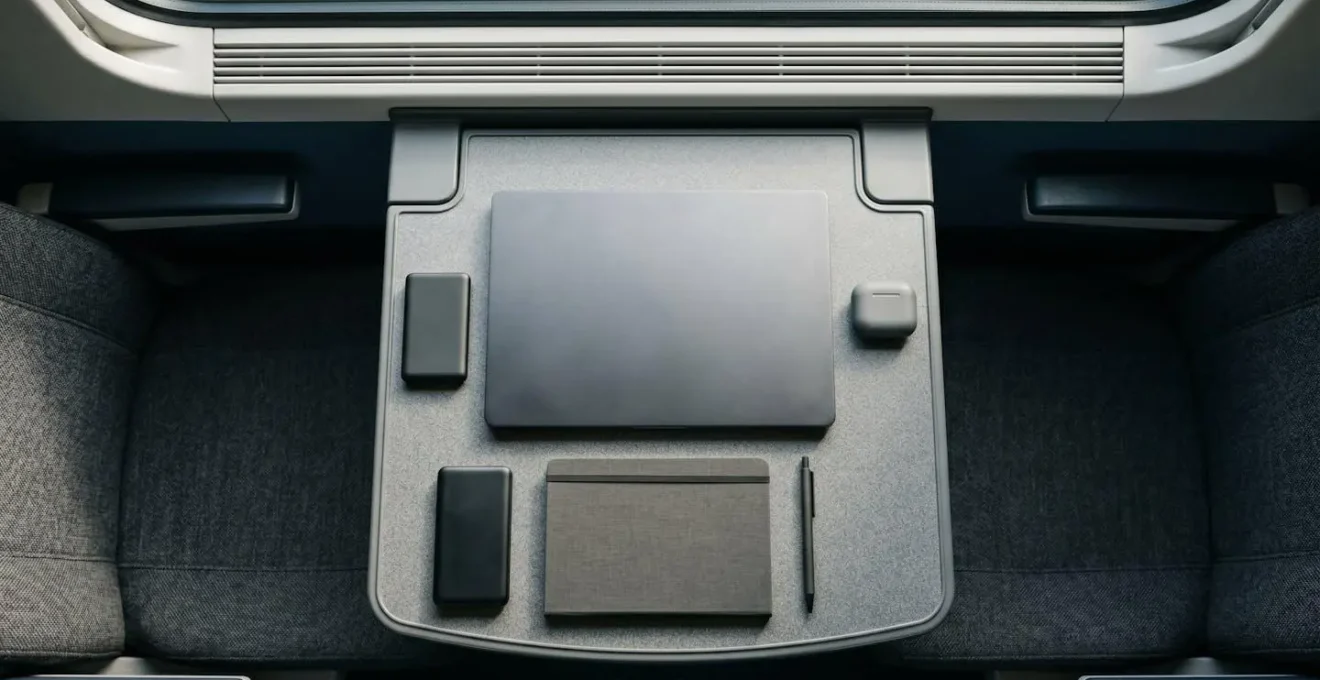
Choosing between an iPad Pro and a MacBook Air for mobile work is less about processing power and more about your philosophy on connectivity and file management. The physical footprint on a tiny train table is a real constraint, but the most significant difference lies in their operating systems. One is a sandboxed, app-centric environment that simplifies workflows at the cost of flexibility; the other is a traditional, powerful file system that offers more control but creates more opportunities for error. For a project manager, the “better” device is the one whose philosophy best mitigates the risks of mobile work.
The iPad Pro, especially with a cellular option, offers a more resilient connection than a MacBook tethered to a phone’s often-flaky hotspot. Its iPadOS environment inherently limits file duplication and simplifies access, reducing the risk of a user accidentally creating and working on a conflicting copy. The MacBook Air, running macOS, provides powerful, familiar file system access. This is a double-edged sword: it offers more control for power users but requires immense discipline to prevent the kind of version conflicts that arise from saving a file “on the desktop… just for a minute.”
The following table, inspired by guides on mobile sync management, highlights the strategic trade-offs.
| Feature | iPad Pro | MacBook Air |
|---|---|---|
| Operating System | iPadOS – sandboxed, app-centric (simplifies workflows but limits flexibility) | macOS – traditional powerful file system (more control but more opportunities for version conflicts) |
| Native Connectivity | Integrated 5G/cellular option for seamless, stable connectivity | Wi-Fi only (most models); relies on often-flaky phone tethering |
| Ergonomics in Cramped Space | Detached keyboard flexibility; adjustable viewing angles | Fixed screen-keyboard unit; limited angle adjustment on small table |
| File Management Impact | Simplified app-based file access reduces version conflict risk | Full file system access requires more disciplined management to prevent conflicts |
| Sync Failure Risk | Lower – consistent cellular connection maintains real-time sync | Higher – dependency on unstable tethering increases offline periods and conflict potential |
For the project manager whose priority is absolute sync integrity and minimizing team error, the iPad Pro’s constrained, always-connected model presents a compelling case. For the power user who needs maximum flexibility and trusts their own operational discipline, the MacBook Air remains the tool of choice. The decision is not about the hardware’s spec sheet, but about which system of work you are committing to.
Why Does Your App Freeze When Loading Data?
An app freezing while you’re trying to load a critical document is a moment of pure frustration. The instinctive reaction is to blame “the app” or “the bad connection.” However, for a project manager, a more systematic approach is required. A frozen app is a system failure, and like any failure, it can be diagnosed. Is it the app’s cache, the device’s connection, the device’s storage, or the network’s quality? Randomly jabbing at the screen is not a strategy. A disciplined diagnostic process is.
This process is about isolating the variable. You need a simple, repeatable flowchart to quickly identify the bottleneck and resolve it. This turns a moment of panic into a controlled troubleshooting procedure. Often, the issue isn’t a lack of signal strength but high latency—a common problem on moving trains where your device is constantly negotiating handoffs between cell towers. Your phone may show full bars of 5G, but the round-trip time for data is too long, causing the app to time out and freeze.
Before escalating or abandoning your work, run through this diagnostic flowchart. It will solve the problem 90% of the time, and for the remaining 10%, it will give you the specific information needed to file a useful bug report.
- Check 1: Clear App Cache. The most common culprit. Corrupted or outdated cached data can cause conflicts. Go to your phone’s settings, find the app, and clear its cache. If that fails, a reinstall is the next logical step.
- Check 2: Toggle Airplane Mode. Turn airplane mode on for 10 seconds, then off. This forces your device’s radios to reset and establish a fresh connection to the network, which can resolve handshake issues.
- Check 3: Verify Background App Refresh. If an app isn’t allowed to refresh in the background, it may struggle to sync large files when you open it. Ensure the setting is enabled for your critical productivity apps.
- Check 4: Check Available Device Storage. A nearly full device is a primary cause of sync failures and freezes. Offline files need space to be stored locally. If you have less than 1-2GB free, the system will struggle.
- Check 5: Test Network Latency, Not Just Speed. Use a speed test app to look at the “ping” or “latency” time (measured in ms). A signal can have high bandwidth (speed) but also high latency (delay). If latency is over 100-150ms, real-time collaboration apps will freeze.
- Check 6: Identify the Asset Type. Is the app freezing when loading a single, 100MB PDF, or when syncing a folder with 2,000 small files? Different apps are optimized for different scenarios. Knowing this helps identify if it’s a file problem or an app problem.
By methodically working through these steps, you replace frustration with action and re-establish control over your mobile work environment.
Key Takeaways
- Operational Discipline is King: The most effective tool for mobile work is not an app or a device, but a set of clear, enforced protocols for sync, security, and communication.
- Process Over Platform: Choosing between Office and G-Suite, or iPad and MacBook, should be based on which platform’s core philosophy best aligns with your team’s workflow and risk profile, not on a list of features.
- Anticipate Failure, Don’t React to It: The foundation of stress-free mobile work is preparing for disconnection, diagnosing issues systematically, and structuring tasks around the reality of intermittent connectivity.
How to Set Up a Mobile Office on the Train to London Without Stress?
Transforming a cramped, noisy train carriage into a productive workspace is the ultimate test of a project manager’s organizational skills. Success is not determined on the day of travel but in the preparation that precedes it. A stress-free mobile office is not an accident; it is the result of a deliberate, three-part framework: Prepare, Pack, and Protocol. This system moves you from hoping for a productive journey to engineering one.
The most crucial element of this framework is a strategic approach to the work itself. Instead of trying to force high-bandwidth tasks over a low-quality connection, the disciplined project manager matches the task to the environment. This means categorizing your to-do list based on connectivity requirements and executing tasks only when the network quality is appropriate. It’s about working with the reality of the journey, not against it.
This tiered workflow is the cornerstone of mobile productivity. It turns the unpredictable nature of train Wi-Fi from a source of stress into a simple scheduling parameter.
| Connectivity Tier | Connection Quality | Recommended Tasks | Examples |
|---|---|---|---|
| Tier 1: Guaranteed Blackout Zones | No connection / Offline | Pure offline tasks | Writing drafts, reading pre-downloaded documents, offline content creation |
| Tier 2: Spotty Connection | Intermittent / Low bandwidth | Low-bandwidth tasks | Sending emails, chat messages, light browsing, text-based collaboration |
| Tier 3: Stable Connection | Consistent / High bandwidth | High-bandwidth tasks | Syncing large files, video calls, uploading documents, real-time collaboration on complex files |
This disciplined approach, combining meticulous preparation with a realistic workflow strategy, is what separates a frustrating commute from a highly productive mobile work session. By implementing the “Prepare, Pack, Protocol” framework and adopting a tiered task workflow, you establish the systems necessary for success. It’s the final piece of the operational discipline puzzle, ensuring you arrive in London not just on time, but with your work completed and your sanity intact.
Begin today by auditing your own mobile work habits against this framework and identify one protocol—whether it’s pre-departure sync checks or a tiered task list—that you can implement on your next journey.