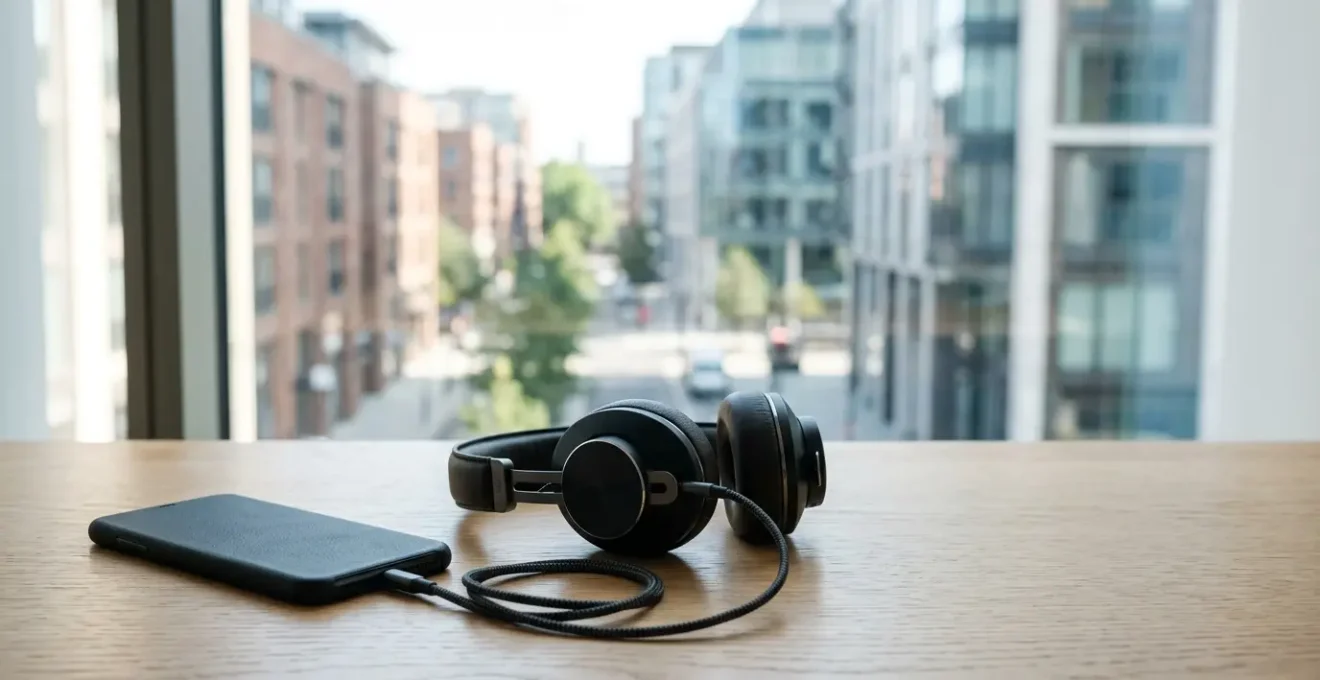
In summary:
- Your phone’s audio is likely compromised by multiple “bottlenecks” in its signal chain, especially over Bluetooth.
- For true studio quality, bypass your phone’s internal hardware with an external USB Digital-to-Analogue Converter (DAC).
- Master advanced settings like Bluetooth codecs (LDAC, aptX HD) and system-wide EQ to correct and enhance the sound.
- A perfect physical ear-tip seal is a non-negotiable final step, more critical than any digital setting for bass and detail.
You’ve invested in a pair of premium headphones, subscribed to a lossless streaming service, and yet, the music coming from your smartphone still sounds… average. It’s a common frustration for any music lover in the UK, especially when the rumble of the Tube or the noise of a busy street washes out all the detail. You’ve probably been told to just switch streaming services or buy even more expensive gear, but the improvement is always marginal.
As an audio engineer, I’m here to tell you the problem isn’t a single component; it’s the entire signal chain. From the digital file on your device to the sound waves hitting your eardrums, every step is a potential bottleneck that degrades quality. Standard Bluetooth connections compress the signal, your phone’s built-in audio chip is designed for cost-efficiency, not fidelity, and a poor earbud fit can destroy bass response before it even reaches your ear.
But what if you could bypass these weak links? The secret to unlocking true high-resolution audio isn’t about spending a fortune; it’s about taking engineering-level control of that signal chain. This guide will deconstruct that path, exposing each bottleneck and providing the technical, practical solutions to eliminate them. We will move from understanding wireless limitations to implementing wired perfection, and finally, to tuning the sound to your specific gear and hearing—all within the UK context.
Summary: Unlocking Studio-Grade Sound From Your UK Smartphone
- Why Your Expensive Headphones Sound Average on Bluetooth?
- How to Connect a DAC to Your Phone for Studio-Quality Sound?
- The Streaming Setting That Eats 1GB of Data in 20 Minutes
- LDAC or AptX HD: Which Bluetooth Codec Sounds Better?
- How to EQ Your Phone Audio to Match Your Headphone Profile?
- How to Verify if Your Android Supports AptX Low Latency?
- How to Use the ‘Fit Test’ to Ensure You Are Actually Protected?
- Does Noise Cancellation Protect Your Hearing on the Tube?
Why Your Expensive Headphones Sound Average on Bluetooth?
The single biggest bottleneck in mobile audio is almost always the Bluetooth connection. To transmit audio wirelessly, your phone must compress the data, a “lossy” process that discards parts of the original recording to save space. Think of it as the audio equivalent of a low-resolution JPEG image; the basic picture is there, but the fine details and textures are gone. This is why even a 24-bit/96kHz master track can sound flat and congested over a standard Bluetooth connection.
Codecs like Sony’s LDAC and Qualcomm’s aptX HD were developed to combat this, promising higher bitrates (more data per second) for near-lossless quality. However, there’s a dirty secret: these codecs are often not running at their full potential. For example, while LDAC can theoretically transmit at 990 kbps, many Android phones default to a “stable connection” mode, throttling it down to 330 kbps—barely better than standard codecs. In fact, technical testing reveals that LDAC defaults to 330kbps on many phones, especially in crowded environments with a lot of wireless interference, like a packed train carriage.
So, while you might have bought headphones that support LDAC, your phone may be silently sabotaging the quality for the sake of a stable signal. This discrepancy between theoretical performance and real-world results is the primary reason why your expensive wireless setup can sound disappointingly average. It highlights a fundamental engineering trade-off: in wireless audio, stability often comes at the direct expense of fidelity.
How to Connect a DAC to Your Phone for Studio-Quality Sound?
If Bluetooth is the compromise, a wired connection via an external Digital-to-Analogue Converter (DAC) is the uncompromising, engineering-grade solution. Your phone already has a built-in DAC to convert digital files into the analogue signal your headphones use, but it’s a mass-produced, cost-optimised chip. An external DAC is a specialised piece of hardware dedicated to one job: performing that conversion with maximum fidelity. It’s the most direct way to bypass your phone’s internal audio limitations.
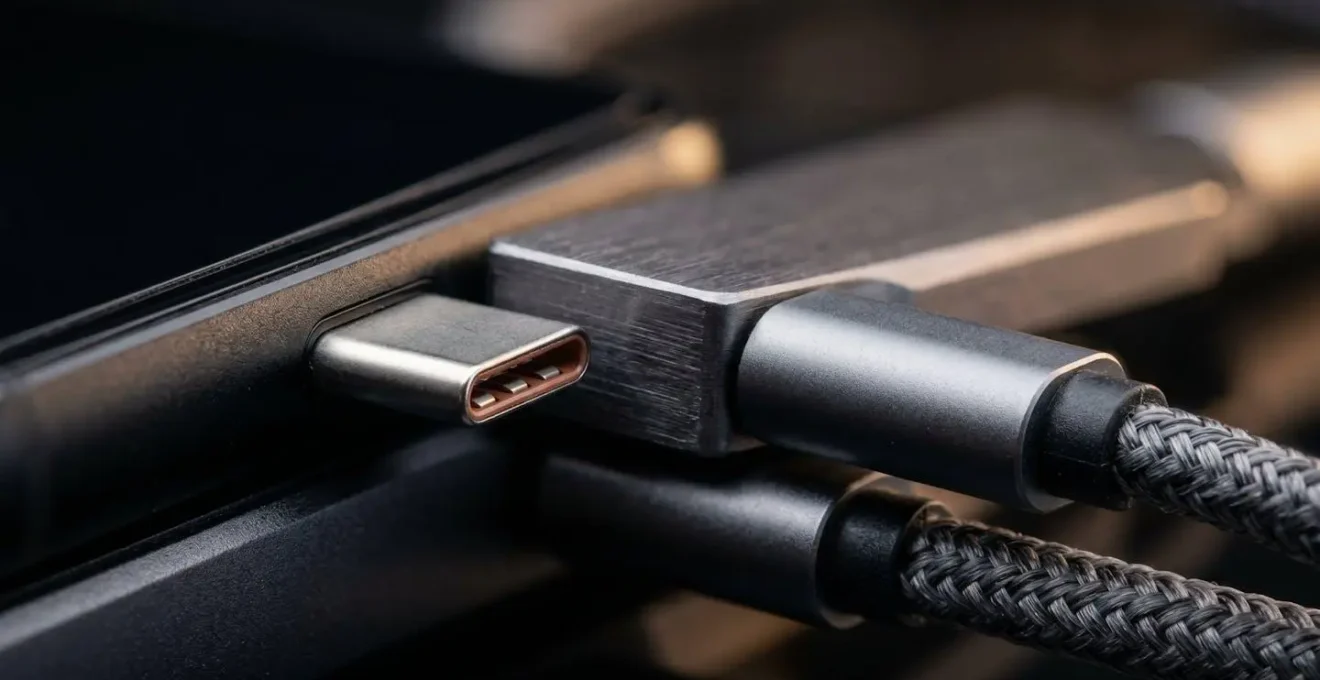
Connecting one is straightforward. For most modern Android phones, you’ll use a USB-C to USB-C cable. For iPhones, it requires a Lightning to USB adapter (often called a ‘Camera Kit’) or a direct USB-C connection on newer models. Once connected, your phone’s operating system should automatically recognise the external DAC and route all audio through it, delivering a pure, unprocessed signal from your streaming app or local files to your headphones.
Case Study: UK Audiophile DAC Recommendations by Budget
For those in the UK, excellent options are available at every price point. At the budget tier (£50-£100), the FiiO KA3 offers incredible value with dual DAC chips and is readily available from retailers like Amazon.co.uk. In the mid-range (£100-£250), the iFi Go Bar provides studio-grade MQA support and is widely stocked at specialists like Sevenoaks Sound & Vision. For the ultimate in portable British hi-fi engineering, the premium Chord Mojo 2 (£450+) delivers desktop-level performance and is available through dedicated retailers like Audio Sanctuary.
For Android users aiming for perfection, apps like USB Audio Player PRO or HiBy Music can provide a “bit-perfect” stream, ensuring the DAC receives the data exactly as it was encoded, without any interference from the Android audio system. This is the purist’s path to transforming your phone into a genuine high-resolution audio player.
The Streaming Setting That Eats 1GB of Data in 20 Minutes
You’ve committed to high-resolution audio. You’ve set Tidal, Qobuz, or Apple Music to “Lossless” or “Master” quality. The sound is incredible. Then, a week into your billing cycle, you get a data warning from your mobile provider. This is the harsh reality of hi-res on the go: it consumes a massive amount of data. While standard Spotify streaming uses about 40-70MB per hour, true hi-res is on another level entirely.
The numbers are stark. Industry data shows that hi-res lossless audio streaming consumes up to 500MB-1GB per hour. At the highest “Master Quality Authenticated” (MQA) or 24-bit/192kHz settings, you could burn through 1GB of data in as little as 20-30 minutes of listening. For a UK user on a typical mobile plan, streaming hi-res audio for just one hour daily during a commute could add up to 30GB of data usage per month, potentially triggering expensive overage fees or severe speed throttling.
The smart strategy, especially for London commuters, is to leverage offline playback. The most cost-effective and quality-preserving solution is to use the free Wi-Fi network available at over 260 Transport for London Underground stations. Before you begin your journey, connect to the Wi-Fi and download your hi-res albums and playlists directly to your device. This allows you to enjoy bit-perfect, uninterrupted playback during your entire commute without consuming a single megabyte of your mobile data plan. It’s a simple engineering solution to an economic problem, ensuring your audio quality isn’t limited by your data cap.
LDAC or AptX HD: Which Bluetooth Codec Sounds Better?
If a wired connection isn’t practical, mastering Bluetooth codecs is the next best thing. The debate between the two main high-resolution contenders, Sony’s LDAC and Qualcomm’s aptX HD, is a matter of engineering priorities. There is no single “best” codec; there is only the best codec for a specific situation.
An expert analysis provides a clear framework for understanding the differences. As noted in a technical deep-dive by ALOVA Audio:
LDAC offers the highest potential bitrate for hi-res audio, while aptX HD provides a stable, high-quality connection. aptX Adaptive is the most flexible, adjusting quality in real-time to prevent dropouts.
– ALOVA Audio Technical Analysis, AptX Adaptive, LDAC or AptX HD: Which Bluetooth Codec Wins?
In essence: LDAC prioritises maximum potential quality (up to 990 kbps), but its performance is variable and can drop significantly in areas with high radio frequency interference. AptX HD prioritises consistency, delivering a fixed, reliable 576 kbps stream. AptX Adaptive is the pragmatist, dynamically shifting its bitrate between 279 kbps and 420 kbps to avoid stutters and dropouts at all costs. For critical listening in a quiet room, LDAC (if forced to its highest setting) will likely sound superior. For walking through a busy Waterloo station, the stability of aptX HD or the flexibility of aptX Adaptive will provide a better, uninterrupted experience.
However, the theoretical debate is useless if your device doesn’t support the codec. Crucially, iPhones support none of these, sticking to the lower-bitrate AAC codec. For Android users, compatibility is key.
| Phone Model | LDAC | aptX HD | aptX Adaptive | AAC |
|---|---|---|---|---|
| iPhone 15/16 Series | No | No | No | Yes |
| Samsung Galaxy S24/S25 | Yes | No | Yes | Yes |
| Google Pixel 8/9 | Yes | No | No | Yes |
| Nothing Phone (2) | Yes | Yes | Yes | Yes |
| Samsung Galaxy A-Series | Yes | No | Varies | Yes |
How to EQ Your Phone Audio to Match Your Headphone Profile?
Equalisation (EQ) often gets a bad reputation, associated with crude “bass boost” sliders. From an engineer’s perspective, however, EQ is a powerful corrective tool. No headphone has a perfectly “flat” frequency response; each has its own sonic signature, with peaks and dips in certain frequencies. A good EQ doesn’t just change the sound; it corrects the imperfections of your hardware to deliver a signal closer to the original master recording.
For Android users, the most powerful tool for this is the app Wavelet. It contains a massive database of headphone profiles generated by the AutoEQ project, which measures hundreds of popular models—from the Sony WH-1000XM5 to the Bowers & Wilkins Px7—and creates a specific EQ curve to counteract their sonic flaws and align them with a neutral, studio-target response.

Using it is a form of precision engineering for your ears. You simply select your headphone model from the list, and the app applies a system-wide correction to all audio output. The effect is often subtle but profound: harsh treble is tamed, muddy bass becomes tighter, and the entire soundstage can feel more open and accurate. For advanced users, it offers a full graphic equaliser to fine-tune the sound to your personal preference or even save different profiles for different pairs of headphones or IEMs.
Here are the essential steps to get started:
- Download the Wavelet app from the Google Play Store.
- Grant it the necessary audio processing permissions within your Android settings.
- In the app, find and select your specific headphone model from the AutoEQ database.
- For modern Android versions (12+), you may need to enable “Legacy mode” for the EQ to apply to all apps.
- Test the sound with familiar, high-quality tracks to hear the difference.
How to Verify if Your Android Supports AptX Low Latency?
Beyond bitrate and quality, there’s another critical codec specification: latency. This is the delay between the sound being generated on your phone and you hearing it in your headphones. For music listening, high latency is barely noticeable. But for watching video or playing games, it’s the source of that frustrating lip-sync issue where an actor’s mouth moves before you hear their words. This is where codecs like aptX Adaptive and its low-latency mode become essential.
AptX Adaptive can achieve latency under 80ms, making the audio-video sync virtually perfect. This is particularly beneficial for UK users streaming catch-up TV from BBC iPlayer or Channel 4 on their commute. But how do you know if your phone is actually using it? You need to access Android’s hidden Developer Options. This allows you to see exactly which codec is active and, in some cases, manually select the one you want.
This process is a fundamental system check, allowing you to audit your device’s true capabilities. It provides irrefutable proof of what your hardware is doing, cutting through marketing claims.
Your Action Plan: Android Bluetooth Codec Audit
- Initial Connection: Pair your Bluetooth headphones to your Android phone to establish an active link.
- Developer Activation: Navigate to Settings > About Phone and tap on ‘Build Number’ seven consecutive times until you see the “You are now a developer!” confirmation.
- Access Menu: Go back to the main Settings menu, then find and enter the newly unlocked ‘System’ > ‘Developer Options’.
- Locate Setting: Scroll down to the ‘Networking’ section and find the ‘Bluetooth Audio Codec’ option. This is your audit point.
- Verify & Override: Tap it to view the currently active codec and the full list of codecs supported by your phone. If both your phone and headphones support a better option (like LDAC or aptX Adaptive), you can manually select it here to override the default.
How to Use the ‘Fit Test’ to Ensure You Are Actually Protected?
We’ve covered the digital signal chain, but the final, and arguably most critical, link is physical: the acoustic seal between your earbud and your ear canal. Many modern earbuds (like AirPods Pro or Nothing Ear) include a “Fit Test” feature in their companion app. Most users treat this as a simple comfort check, but from an engineering standpoint, it’s a critical system diagnostic. A failed fit test doesn’t just mean a bit of noise will leak in; it signifies a catastrophic failure of the entire acoustic system.
Without a perfect seal, low-frequency sound waves (bass) physically escape your ear canal before they can be properly perceived. This is why a poor fit results in thin, tinny, and lifeless sound, regardless of how good your source file or DAC is. Investing in hi-res audio becomes pointless if the bass response is fundamentally broken at the last millimetre of the signal chain. UK audio retailer testing often shows that spending £15-20 on a set of third-party Comply foam tips, which expand to the shape of your ear canal, provides a more significant improvement in perceived audio quality than upgrading a digital component.
Troubleshooting a failed fit test is a systematic process:
- First, run the test in a quiet room to get an accurate baseline reading.
- Systematically try every size of included ear tip (Small, Medium, Large) for both ears, re-running the test each time.
- If both silicone and foam tips were included, test both materials. Foam often provides a better seal for difficult-to-fit ears.
- Ensure the ear tip is fully seated on the earbud’s nozzle without any gaps.
- The goal is a seal that feels secure and passes the test, but does not cause pain or pressure during extended wear.
Key takeaways
- Bluetooth is the biggest audio quality bottleneck; its high-resolution codecs like LDAC often underperform in real-world UK environments due to interference.
- The most effective way to achieve true hi-fi sound is to bypass your phone’s internal hardware completely with an external USB DAC.
- The final physical acoustic seal of your ear tip is as critical as any digital component; a poor seal destroys bass response, rendering hi-res investments useless.
Does Noise Cancellation Protect Your Hearing on the Tube?
For any UK commuter, the ultimate test of an audio setup is the London Underground. Here, Active Noise Cancellation (ANC) isn’t just a luxury; it’s a necessity. But its greatest benefit isn’t just silence—it’s the psychoacoustic impact on your listening habits, which directly protects both your hearing and the integrity of your hi-res music.

The noise levels on the Tube are extreme. In fact, environmental noise testing demonstrates that parts of the network, particularly the Victoria Line, can exceed 100dB, a level at which prolonged exposure can cause permanent hearing damage. In these conditions, without effective ANC, the natural human response is to crank up the volume of the music to overcome the external noise. This act of “drowning out the Tube” often pushes the playback volume into dangerously high levels, compounding the risk to your hearing.
This is where ANC’s true engineering value lies. By electronically cancelling out the low-frequency roar of the train, it creates a quieter canvas. This allows you to listen to your music at a much lower, safer volume—often 60-70dB instead of 90dB+. It’s at these safer volumes that the benefits of high-resolution audio truly shine. The subtle details, wider dynamic range, and delicate textures that are the hallmark of a hi-res track are instantly audible. When you’re not fighting against external noise, you can finally perceive the nuance you’ve worked so hard to preserve throughout the rest of your signal chain. An effective ANC doesn’t just protect your hearing; it creates the necessary condition to finally enjoy your music.
Stop accepting compromised sound. Take control of your audio signal chain today and hear your music the way the artist and engineer intended it to be heard, even on the busiest platform at King’s Cross.