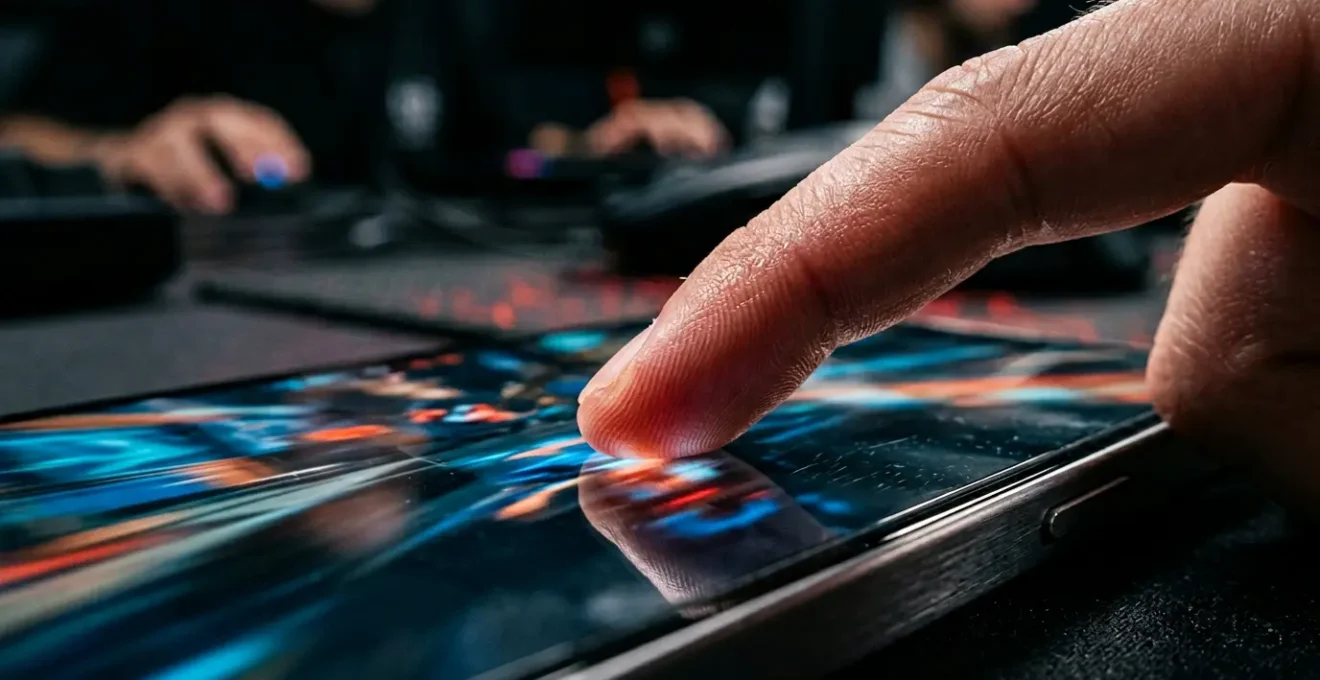
For competitive gamers, the obsession with refresh rates is a red herring; the real war is won or lost in the invisible realm of touch latency.
- High refresh rates provide smoother visuals, but high touch sampling rates directly reduce the input lag between your finger and the in-game action.
- Your total input delay is a “latency budget” where every accessory, from screen protectors to phone cases, can add crucial milliseconds of lag.
Recommendation: Stop admiring your screen’s smoothness and start weaponizing its responsiveness. It’s time to audit your entire input-to-photon pipeline.
In the final circle, with the enemy in your sights, you tap to fire. You see the shot connect on your screen, but the kill feed tells a different story: you’re the one who’s down. You blame “lag,” but what does that really mean? For years, the mobile industry has conditioned gamers to chase higher refresh rates—90Hz, 120Hz, even 144Hz—promising unparalleled smoothness. This focus on fluid motion, while visually pleasing, has become a distraction from the real bottleneck affecting your competitive performance.
The common wisdom is that a higher refresh rate makes you a better player. While it helps, it’s only half the story. The truth is, the battle for visual smoothness was won years ago. The new, invisible war is fought in milliseconds of touch latency, a battlefield where the touch sampling rate, not the refresh rate, is the decisive weapon. This isn’t about pretty graphics you can see; it’s about an input advantage your opponent feels when they lose a gunfight they thought they had won.
This guide will serve as your technical briefing. We’re going to move beyond marketing hype and dissect the entire input-to-photon pipeline. We will treat your phone not as a casual device, but as a weapon system that must be tuned for maximum lethality. We’ll explore how to measure your real-world latency, why seemingly unrelated factors drain your performance, and how to optimize every single component—from your screen protector to your audio dongle—to minimize your latency budget and gain a tangible competitive edge.
To navigate this technical deep dive, we’ll break down the core components that dictate your device’s combat readiness. This structured approach will help you identify and eliminate the hidden sources of lag in your own setup.
Summary: Mastering the Milliseconds: A Gamer’s Guide to Touch vs. Refresh Rate
- How to Test Touch Latency at Home Without Expensive Gear?
- Why Is Your Phone Battery Dying While Reading Static Web Pages?
- 240Hz Sampling: Can You Actually Feel the Difference in Shooter Games?
- The Accessory Mistake That Increases Input Lag by 15ms
- How to Tweak Touch Sensitivity for Rhythm Games vs Shooters?
- How to Use Overlays to Check CPU Temp While Gaming?
- USB-C Dongle or Bluetooth: Which Is Faster for Gaming Audio?
- Why Your Frame Rate Drops After 30 Minutes of Gaming?
How to Test Touch Latency at Home Without Expensive Gear?
You can’t optimize what you can’t measure. Before you can reduce your input lag, you need a baseline. Forget expensive lab equipment; your own phone’s camera is a powerful diagnostic tool. While manufacturers boast about theoretical touch sampling rates, the real-world touch-to-photon latency—the time from your finger contacting the glass to a visual change on screen—is what truly matters. This total latency can be surprisingly high; a 2023 study of 26 popular smartphones found response times ranging from a respectable 35 ms to a sluggish 140 ms. Finding out where your device sits on this spectrum is the first step.
The most accessible method involves using your phone’s slow-motion video recording feature. You need a second device to do the recording, preferably one that can shoot at 120fps or, ideally, 240fps. By filming your own finger tapping an interactive element (like a button in a drawing app) and then analyzing the footage frame by frame, you can count the frames between the physical touch and the screen’s reaction. This gives you a concrete, measurable number for your device’s latency budget.
For a direct comparison, you can place two phones side-by-side, run the same drawing app, and use a metal ruler to swipe across both screens at once. The phone with the lower latency will have the line drawn on the screen appear “ahead” of the other. This simple test visually exposes the performance gap between devices. Remember to test multiple times to check for jitter—an inconsistent delay that reveals an unstable touch input system, which is even worse for muscle memory than a consistently high latency.
Why Is Your Phone Battery Dying While Reading Static Web Pages?
Understanding your phone’s behavior outside of gaming is crucial to mastering its hardware. A common puzzle is a high-refresh-rate screen draining the battery on a static page. The culprit is the failure of adaptive refresh rate technology, like LTPO (Low-Temperature Polycrystalline Oxide), to engage properly. In theory, LTPO allows a display to dynamically drop its refresh rate from 120Hz down to as low as 1Hz when viewing static content, which can reduce power consumption by 15-25%. This dynamic shifting is designed to give you smoothness when you need it and battery savings when you don’t.
However, the real world often sabotages this elegant solution. The web is filled with poorly optimized elements, such as animated ads or background scripts, that constantly “ping” the system. These elements trick the phone’s OS into thinking the content is still dynamic, forcing the display to remain at a high-power 60Hz or 120Hz state, even if the page appears motionless to you. This is a classic example of software inefficiency negating a hardware advantage.
Case Study: The LTPO Paradox in the Samsung Galaxy S25 Ultra
Samsung’s advanced Dynamic LTPO AMOLED 2X display in its flagship models can achieve a 22% reduction in display energy consumption over previous generations. However, user reports consistently show that browsers often fail to trigger the 1Hz mode. The issue is traced back to web apps and ad scripts that prevent the CPU from entering a deep sleep state. This keeps the display controller on high alert and in a higher power mode, effectively nullifying the LTPO benefit and draining the battery despite the static nature of the content.
For a gamer, this is a critical lesson in system behavior. It demonstrates that even the most advanced hardware features can be undermined by the software environment. Your job as a competitive player is to be aware of these hidden power drains and system quirks, as they can impact battery life and thermal headroom available for your actual gaming sessions.
240Hz Sampling: Can You Actually Feel the Difference in Shooter Games?
This is the central question. Can your nervous system even detect the improvement from a 120Hz to a 240Hz touch sampling rate? The answer is more complex than a simple yes or no. Let’s talk physics. The touch sampling rate is the frequency at which the screen’s digitizer looks for new touch input. A 240Hz sampling rate means the screen scans for your finger’s position 240 times per second. This translates to a new scan every 4.16 milliseconds, as technical analysis reveals. In contrast, a 120Hz rate scans every 8.33ms.
A single 4ms difference is well below the threshold of human perception for a single, isolated event. You won’t “feel” one tap being 4ms faster. However, gaming—especially high-level shooter gameplay—is not a series of isolated events. It’s a continuous stream of rapid, precise inputs: tracking a moving target, controlling recoil by dragging down, and snap-aiming to a new threat. It is in these continuous and corrective actions that the benefit of high-frequency sampling becomes tangible.
Think of it as resolution, but for touch. A higher sampling rate provides a more detailed, higher-fidelity data stream of your finger’s movement. When you are drag-scoping or controlling a spray pattern, the game engine receives more data points about your thumb’s path. This results in a smoother, more predictable aiming reticle with less micro-stutter or “stepping.” It’s not about being faster in one moment; it’s about having a more stable and reliable connection to your character’s aim across thousands of inputs in a match. The advantage isn’t that you react faster, but that your aim is more consistent and feels more “stuck” to your intentions.
The Accessory Mistake That Increases Input Lag by 15ms
You’ve invested in a flagship phone with a 240Hz touch sampling rate, yet you’re still losing gunfights. The problem might not be your phone, but the accessories attached to it. Every component you add to your device contributes to the overall “latency budget.” A cheap or poorly designed accessory can easily add 10-15ms of input lag, completely negating the 4-8ms advantage you paid for with a high-end display. This is a common and costly mistake.
The most frequent offender is the screen protector. A thick, cheap tempered glass protector, especially one with only edge adhesive, creates a microscopic air gap between the protector and the digitizer. This gap can disrupt the capacitive field your finger uses to register a touch, forcing the system to work harder to detect input, thereby adding latency. An ultra-thin film protector or a premium gaming-grade glass with full-surface liquid adhesive is a non-negotiable upgrade. Similarly, unpowered USB-C hubs can create I/O bottlenecks, delaying input from connected peripherals. And never underestimate the impact of heat: a thick, non-breathable case can trap heat, trigger thermal throttling, and indirectly slow down the entire system, including input processing.
It’s time to audit your gear. A competitive player leaves nothing to chance. Use this checklist to perform a full audit of your hardware setup and identify the weak links that are costing you precious milliseconds.
Your 5-Point Input Lag Audit
- Surface Interface Audit: Document your current screen protector’s material (glass/film), thickness (in mm if known), and adhesive type (edge/full). Deliverable: A note with your screen protector’s specs.
- Peripheral Connection Inventory: List all accessories connected during gameplay (charger, headphones, hub). Note connection type (USB-C direct, dongle, Bluetooth) and brand. Deliverable: A list of all connected gear and their connection methods.
- Thermal Casing Review: Identify your phone case material (silicone, hard plastic, metal) and check for ventilation cutouts around the phone’s chassis. Deliverable: A description of your case and its thermal properties.
- Power Delivery Analysis: Check if you game while charging. If so, document the charger’s brand and wattage (is it the original certified charger?). Deliverable: A statement on your charging habits during gaming.
- Lag Reduction Action Plan: Based on the audit, identify the top 1-2 components most likely contributing to lag (e.g., “thick glass protector,” “unpowered USB hub”) and list a specific replacement or removal action for each. Deliverable: A prioritized action list.
How to Tweak Touch Sensitivity for Rhythm Games vs Shooters?
A high touch sampling rate gives you the raw potential for responsiveness, but it’s useless without proper tuning. As the gaming phone experts at RedMagic state, “A higher touch sampling rate can lead to a noticeably better performance in games that require rapid tapping or swiping.” However, the optimal settings for this performance vary dramatically by genre. Using the same sensitivity profile for a shooter like *CoD Mobile* and a rhythm game like *Arcaea* is a recipe for failure. One requires fast, adaptive aiming, while the other demands absolute precision and muscle memory consistency.
For shooters, the goal is a combination of fast camera movement for 180-degree turns and precise micro-adjustments for aiming. This often means a high pointer speed and enabling some form of touch acceleration. Acceleration allows you to make fast swipes for large movements and slow, deliberate swipes for fine-tuning your aim. A larger touch dead zone can also be beneficial to prevent accidental inputs from your palms while gripping the device.
Rhythm games are the complete opposite. The goal here is perfect 1:1 muscle memory. Every tap must land exactly where intended, with no deviation. This requires disabling touch acceleration entirely, as it introduces unpredictability. A lower pointer speed ensures that you don’t overshoot notes, and a minimal or non-existent dead zone is crucial for registering taps at the very edge of the screen. The key is consistency, allowing your brain to build a perfect map between your hand movements and the on-screen actions.
The most effective strategy is to use per-app profiles, a feature available in the settings of many gaming-focused phones or through third-party apps. This allows you to create and automatically apply a custom-tuned set of touch controls for each game. Below is a baseline configuration for these two distinct genres.
| Setting | Shooter Games (PUBG, CoD) | Rhythm Games (Arcaea, OSU!) |
|---|---|---|
| Pointer Speed | High (70-90%) | Medium-Low (40-60%) |
| Touch Acceleration | Enabled (for rapid 180° turns) | Disabled (for 1:1 precision) |
| Touch Dead Zone | Large (prevent palm inputs) | Minimal/Off (edge taps matter) |
| Per-App Profiles | Custom high sensitivity profile | Custom zero-acceleration profile |
| Priority Goal | Fast sweeping + precise aiming | Perfect muscle memory consistency |
How to Use Overlays to Check CPU Temp While Gaming?
Your phone’s performance is not a constant. It’s a dynamic state that is heavily influenced by heat. As the System-on-a-Chip (SoC) works harder, it generates heat, and if that heat isn’t dissipated effectively, the system will protect itself by “throttling”—aggressively cutting performance to cool down. As a hardware coach, my mandate is clear: you must monitor your thermals. Flying blind is asking for a frame rate drop at the worst possible moment.
Using a performance overlay is non-negotiable. These tools display real-time data—like CPU and GPU temperature, clock speeds, and FPS—directly on your screen while you play. This gives you a live dashboard of your hardware’s health. Dedicated gaming phones from brands like Asus or RedMagic have these features built into their native “Game Space” software. For standard Android phones, apps like CPU-Z or PerfZ can provide similar functionality, once you grant them the necessary “Display over other apps” permission.
Your goal is to establish a correlation between temperature and performance for your specific device. You need to become an expert on your own hardware’s limits. The following steps outline how to set up and use these tools effectively to gain a strategic advantage.
- For gaming phones (Asus ROG, RedMagic): Access the built-in Game Overlay via Game Genie/Game Space, and enable performance metrics including CPU/GPU temp, clock speeds, and FPS.
- For standard Android phones: Install a reputable monitoring app like CPU-Z or PerfZ, and grant ‘Display over other apps’ permission in Settings > Apps > Special Access.
- Monitor SoC Temperature AND Battery Temperature simultaneously: This is a pro tip. Often, it’s the battery temperature hitting its safety limit (around 45°C) that triggers throttling, even before the CPU itself gets critically hot.
- Create correlation data: Actively track when your temperature crosses the 45°C threshold and observe if your FPS becomes unstable. This helps you identify your device’s specific thermal throttling point.
- Enable persistent overlay during gaming sessions: Use this live data to spot thermal patterns and proactively adjust settings (like graphics quality or refresh rate) before the system forces a performance drop.
USB-C Dongle or Bluetooth: Which Is Faster for Gaming Audio?
Visual performance is only one part of the equation. Audio latency—the delay between an in-game event and you hearing the sound—is just as critical. The sound of an enemy’s footsteps is often the first and only warning you’ll get. In this area, the choice between a wired and wireless connection is not a matter of preference; it’s a matter of competitive viability. The simple physics of signal transmission dictates a clear winner.
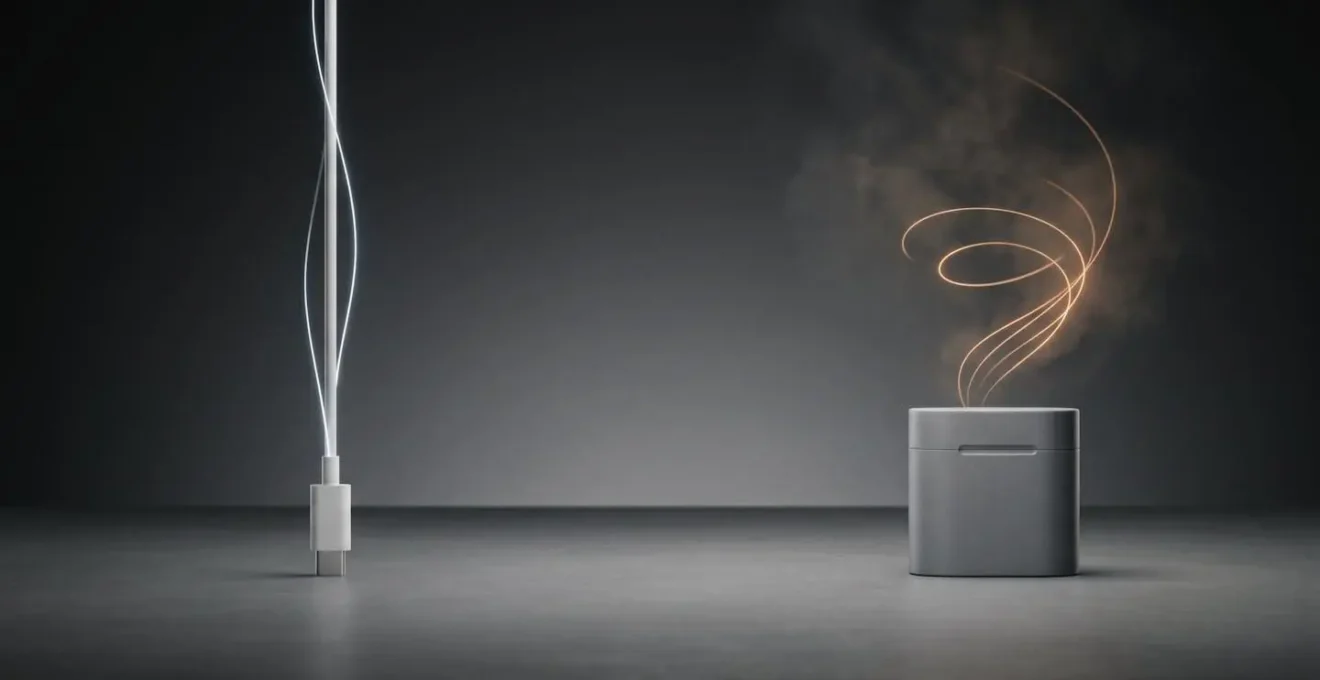
A wired connection via a USB-C dongle or a 3.5mm jack provides a direct, physical path for the audio signal. The latency is negligible, typically in the single digits of milliseconds. Bluetooth, by contrast, involves a complex multi-step process: the audio must be digitally encoded, compressed, transmitted wirelessly, received, decoded, and finally converted back into an analog signal for your ears. Every step adds latency.
While Bluetooth technology has improved with codecs like aptX Low Latency and aptX Adaptive, they still cannot compete with a direct wired connection. As the data shows, even the best wireless solutions introduce a delay that is multiple times higher than a simple USB-C dongle. This delay can be the difference between you reacting to footsteps and your opponent getting the first shot.
The following table, based on standard industry latency measurements, makes the hierarchy of performance abundantly clear. For competitive play, there is only one correct choice.
| Connection Type | Typical Latency | Codec | Gaming Suitability |
|---|---|---|---|
| USB-C Dongle (DAC) | 5-10ms | N/A (Wired) | Excellent (always fastest) |
| Bluetooth SBC | 150-250ms | Standard SBC | Poor (noticeable delay) |
| Bluetooth aptX Low Latency | 40-60ms | aptX LL | Good (requires handshake) |
| Bluetooth aptX Adaptive | 50-80ms | aptX Adaptive | Good (variable quality) |
| Bluetooth LE Audio (Future) | <20ms | LC3 | Excellent (upcoming standard) |
Key Takeaways
- Touch latency, not just refresh rate, is the new competitive frontier in mobile gaming; it directly impacts your input-to-action speed.
- Your total input lag is a “latency budget” where every accessory (screen protector, case) and system state (heat) can add costly milliseconds.
- Wired audio and active thermal management are non-negotiable disciplines for maintaining peak performance and minimizing lag during intense gaming sessions.
Why Your Frame Rate Drops After 30 Minutes of Gaming?
It’s a familiar and frustrating scenario: your game runs perfectly for the first 20-30 minutes, then performance suddenly falls off a cliff. Your frame rate becomes unstable, and input feels sluggish. This isn’t random; it’s a predictable hardware phenomenon called thermal saturation. Understanding this process is the final piece of the puzzle to maintaining consistent performance during long gaming sessions.
Modern gaming phones use sophisticated cooling systems like vapor chambers to move heat away from the powerful SoC. These systems are highly efficient during short bursts of activity. However, they don’t eliminate heat; they just move it to the phone’s chassis and internal frame. After a sustained period of intense gaming, this entire thermal system becomes “saturated” with heat. Once the chassis itself is hot, the cooling system’s efficiency plummets because it has nowhere left to dissipate the heat to. This is the saturation point.
Case Study: The Vapor Chamber Saturation Point
Even advanced vapor chamber cooling systems face a hard limit. During extended gaming sessions, the entire chamber and phone chassis become heat-saturated, causing a dramatic drop in cooling efficiency. At this point, the system’s last line of defense is aggressive performance throttling. Crucially, testing reveals that the battery temperature reaching 45°C often acts as the primary trigger for this throttling, even more so than the SoC temperature itself. The system limits power delivery to the processor to protect the battery, regardless of whether the CPU has any thermal headroom left. This explains why performance drops occur even when the processor itself hasn’t reached its critical temperature limit.
Once you understand that thermal throttling is an inevitable consequence of heat saturation, you can move from being a victim of it to proactively managing it. The goal is to delay the saturation point for as long as possible and manage your settings to stay below the throttling threshold. The following mitigation strategies are essential tactics for any competitive player.
- Monitor battery temperature alongside CPU temp using overlay tools—when the battery hits 42-45°C, take a 5-minute cooldown break before throttling kicks in.
- Remove your phone case during extended gaming to improve passive heat dissipation through the chassis.
- Reduce graphics quality settings preemptively after 20 minutes of gameplay rather than waiting for automatic throttling.
- Avoid gaming while charging, as the combined heat from charging and processing drastically accelerates thermal buildup.
- Position your phone near a gentle airflow source, like a desk fan, to aid the passive cooling of the chassis.
Stop blaming “lag” and start controlling it. Your hardware has limits, but it also has potential. Use this guide to audit your setup, tune your settings, and turn every component of your device into a deliberate competitive advantage. The fight is won in milliseconds; it’s time to claim every one of them.