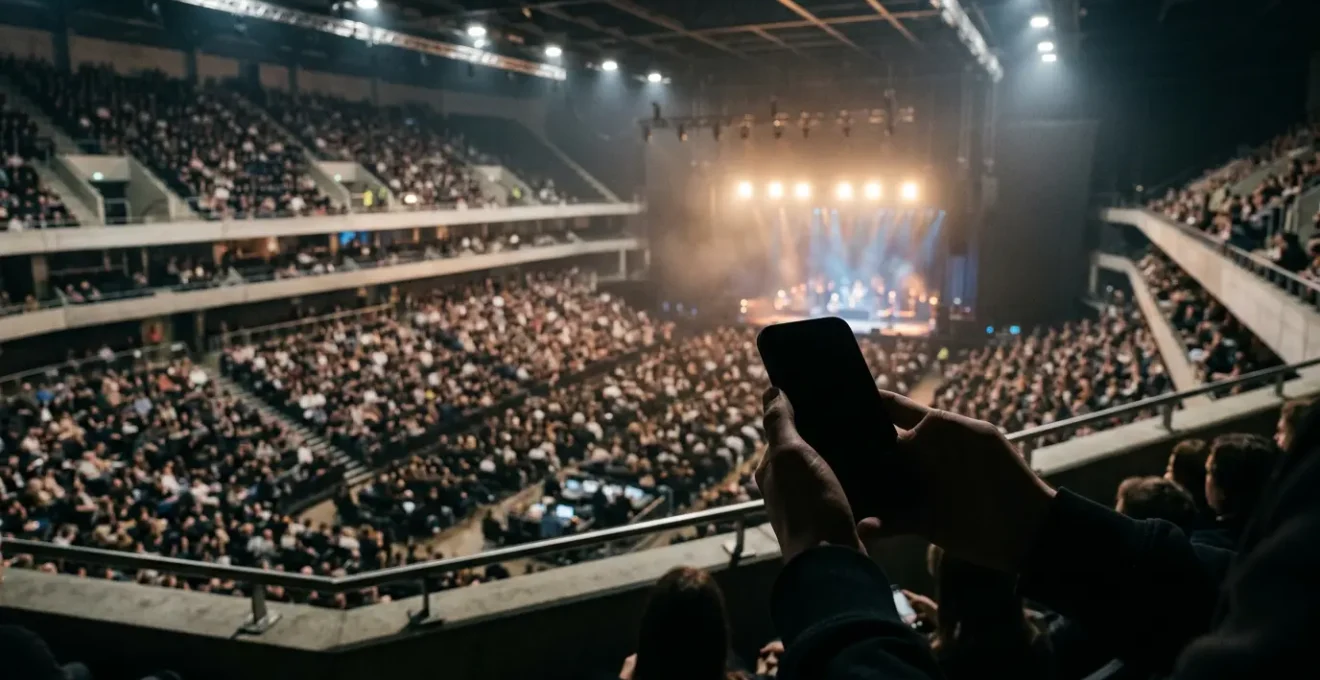
The secret to great concert footage isn’t buying a new phone; it’s understanding how your current phone fakes its zoom and learning how to outsmart it.
- Optical zoom uses real glass for lossless quality, while digital and hybrid zooms are just software guesswork that falls apart in low light.
- Mastering simple handheld stability techniques is more effective than relying on your phone’s built-in stabilisation, which can cause other issues.
- For true studio-quality sound, you must bypass your phone’s internal hardware with an external Digital-to-Analog Converter (DAC).
Recommendation: Before your next gig, spend 15 minutes practising the ‘stabilisation triangle’ and ‘clap test’ described in this guide. It will transform your footage more than any new app or accessory.
You’re there. The house lights dim, the roar of thousands goes up, and the band walks on stage. You’re buzzing, but you’re also 100 metres from the action, stuck behind a sea of heads. You raise your phone, pinch to zoom, and hit record, hoping for the best. Later, you watch it back, and it’s a disaster: a blurry, pixelated mess that looks more like an impressionist painting than the rock god you were filming. Sound familiar?
Most advice you’ll find is unhelpful: “get closer” (not an option) or “buy the latest flagship phone with 100x zoom” (not in the budget). You might have heard that optical zoom is better than digital, but what does that actually mean when you’re in a dark, vibrating arena? The truth is, your phone is a powerful little computer, but when you push that zoom slider, it’s making a series of aggressive, often ugly, computational compromises to deliver a picture.
This isn’t just another list of generic tips. This is a videographer’s guide to understanding the battle between physics and software happening inside your phone. It’s about learning to work *with* your phone’s limitations, not against them. We’ll break down why your zoom fails, how to achieve impossible stability with just your hands, and even how to capture audio that does justice to the music. You have the tool in your pocket; it’s time to learn how to use it like a pro.
To navigate this complex topic, we’ve structured this guide to build your knowledge from the ground up, from understanding the image to mastering the sound. Here’s what we’ll cover.
Summary: Periscope Zoom vs Digital Crop: Which Is Better for UK Concerts?
- Why Do Your Zoomed Photos Look Like Oil Paintings?
- Optical or Hybrid: What Does “Space Zoom” Actually Mean?
- The Low-Light Problem That Makes Your Zoom Lens Useless at Night
- How to Shoot Sharp Video at 10x Zoom With Just Your Hands?
- When Is a £20 Clip-On Lens Better Than Your Phone’s Digital Zoom?
- How to Get True Hi-Res Audio on Your Smartphone in the UK?
- How to Connect a DAC to Your Phone for Studio-Quality Sound?
- Why Does the Sound Lag Behind the Picture by 200ms?
Why Do Your Zoomed Photos Look Like Oil Paintings?
That smeared, painterly effect on your zoomed-in concert photos has a name: aggressive noise reduction. When you zoom in a dark environment, your phone’s tiny sensor is starved for light. To compensate, it cranks up its sensitivity (ISO), which creates a storm of digital “noise” – that ugly, grainy texture. Instead of showing you that grain, the phone’s software makes a computational compromise. It essentially guesses which pixels are noise and which are real detail, then smooths everything over to create a “cleaner” image. The result? Detail is obliterated, and textures like fabric, hair, or facial features are blended into soft, unnatural splotches.

This isn’t a bug; it’s a feature born out of necessity. As you can imagine, the demand for better photos from our phones is immense, and mobile photography drives noise reduction software demand globally. Manufacturers know that most users prefer a soft, “clean” image to a sharp but grainy one. So, the processing algorithms are designed to erase noise at all costs, even if the cost is turning your favourite guitarist’s face into a watercolour. The key to beating this is to give the sensor more light or use a zoom that doesn’t rely on so much digital guesswork in the first place.
Optical or Hybrid: What Does “Space Zoom” Actually Mean?
Phone marketing is full of confusing terms like “Space Zoom,” “AI Zoom,” and “Dynamic Vision.” Let’s cut through the noise. There are only three types of zoom you need to understand, a concept I call Glass vs. Guesswork. Optical zoom is pure glass; it uses physical lens elements that move to magnify the image before it ever hits the sensor. Digital and Hybrid zooms are guesswork; they use software to simulate magnification.
Understanding the fundamental difference is crucial for getting the best shot. Optical zoom maintains the full resolution of your sensor, giving you a genuinely sharp and detailed image. Digital zoom is a sham; it simply crops into the centre of your photo and blows it up, fabricating pixels to fill in the gaps. Hybrid zoom is the middle ground, combining data from the optical lens with AI processing to “reconstruct” a better image than pure digital zoom, but it’s still a compromise that can look artificial, especially on moving faces under stage lighting. The following table, based on expert analysis, breaks it down.
| Zoom Type | How It Works | Image Quality | Best Use at Concerts |
|---|---|---|---|
| Optical Zoom (e.g., 5x, 10x) |
Physical lens elements move to change focal length, providing true magnification | Maintains full resolution and detail with no quality loss | Capturing performer close-ups from mid-to-back venue positions; produces sharp, print-worthy images |
| Digital Zoom (beyond optical range) |
Crops and enlarges center portion of image using software interpolation | Noticeable quality degradation; pixelation and loss of sharpness increase with zoom level | Quick social media posts where detail is less critical; avoid for any serious photography |
| Hybrid/AI Zoom (e.g., 10x-30x) |
Combines optical zoom data with computational photography and AI reconstruction | Usable for social media; superior to pure digital zoom but inferior to optical; can create artificial-looking faces | Extended reach for distant stages when optical limit is reached; works better on static elements (instruments, lighting) than faces |
At a concert, stick to your phone’s highest native optical zoom level (e.g., 3x, 5x, or 10x) for any serious shot. Only venture into hybrid territory for a quick Instagram story, and avoid pure digital zoom like the plague. It’s always better to shoot at your max optical level and crop the photo later yourself; you’ll have more control than the phone’s automatic guesswork.
The Low-Light Problem That Makes Your Zoom Lens Useless at Night
You’ve selected your 10x periscope zoom, ready for that perfect close-up, but the image on your screen is dark, grainy, and refuses to focus. Welcome to the nightmare of “Photon Starvation.” A zoom lens, especially a complex periscope system, has a smaller aperture (the opening that lets light in) than your phone’s main wide-angle camera. In a dark arena, that telephoto lens is literally starving for light particles (photons). Your phone tries to compensate by slowing the shutter speed (creating motion blur) and cranking the ISO (creating noise), leading to a terrible image.
It’s a fundamental challenge of physics. To make matters worse, the design of these periscope lenses has inherent trade-offs. As one technical analysis points out, the internal complexity can be a major issue in dark environments.
Multiple reflections within the periscope system can reduce the amount of light reaching the sensor, potentially resulting in noisier or less detailed images in low light. Additionally, the smaller sensor size often used in telephoto lenses compared to the primary camera can also impact low-light performance.
– Technical analysis of periscope lens limitations, Periscope Telephoto Lens: Everything You Need To Know
Manufacturers are fighting back with innovation. For instance, some new periscope technology reveals advancements like Samsung’s ALoP camera, which achieves a wider f/2.58 aperture to improve light gathering. However, the rule remains: your zoom lens will always be at a disadvantage compared to your main lens at night. The solution is to only use it when the stage lighting is at its brightest—during a chorus, a guitar solo under a spotlight, or the bright flash of a strobe. Don’t even try to film during dark, moody verses; you’re just setting yourself up for failure.
How to Shoot Sharp Video at 10x Zoom With Just Your Hands?
Okay, so you’re at 10x optical zoom, the lighting is perfect, but the slightest twitch of your hand sends the frame into a wobbly mess. Your phone’s built-in Optical Image Stabilization (OIS) can only do so much. To get truly sharp handheld footage, you need to turn your own body into a tripod. This means creating a “Stabilization Triangle.”
This isn’t just about “holding steady”; it’s a specific technique used by professional camera operators. Hold your phone with both hands, but crucially, tuck your elbows in tight against your ribs. This creates a solid, three-point connection (two hands on the phone, elbows on your body) that dramatically reduces the range of motion and shakiness. From there, you can add more layers of stability:
- Control Your Breath: Just like a sniper, your breathing introduces shake. Take a breath in, breathe out slowly, and then hold your breath for the 5-10 seconds you’re recording the critical shot.
- Use an Anchor: Lean your back or shoulder firmly against a venue pillar, a wall, or the railing of a balcony. Anchoring your body mass eliminates large sways and jitters.
- Lock Your Focus: Before you hit record, tap and hold on the performer’s face to activate the AE/AF (Auto-Exposure/Auto-Focus) Lock. This stops the camera from “hunting” for focus mid-shot, which is a major cause of perceived instability.
- Walk Like a Ninja: If you must move, bend your knees and walk in a smooth, gliding motion. Stiff-legged walking transfers every single footstep vibration directly up into your arms and the phone.
Case Study: The Gimbal Dilemma
Dedicated gimbals like the DJI Osmo Mobile series offer incredible three-axis motorized stabilization, smoothing out walking motion far beyond what OIS can achieve. Their ActiveTrack feature is a lifesaver for keeping the performer locked in focus even as you move. However, there’s a huge real-world catch for UK concert-goers: many larger venues (like the O2 or AO Arena) will flag a gimbal at security as “professional equipment” and may refuse entry with it. Always check the venue’s specific policy before you go. Often, mastering handheld techniques is the more reliable option.
When Is a £20 Clip-On Lens Better Than Your Phone’s Digital Zoom?
You’ve seen them online: cheap kits of clip-on lenses promising “pro-level telephoto” for your phone. Most are junk, introducing terrible distortion and vignetting (dark corners). But is there a time when a £20 piece of glass is actually better than your phone’s multi-hundred-pound internal system? Yes, but only in one very specific scenario: when you are forced to use pure digital zoom.
As a smartphone photography guide notes, the primary benefit is simple: a clip-on lens provides a form of optical magnification. A decent 2x or 3x telephoto clip-on lens physically magnifies the light *before* it hits your phone’s sensor. This means you are feeding your main, high-quality camera sensor a genuinely magnified image. It’s a crude form of optical zoom. Your phone’s digital zoom, on the other hand, takes a normal, un-magnified image and just crops it, throwing away up to 75% of the pixels and then guessing what to fill the gaps with.
So, here’s the rule: if your phone only has a single wide lens and offers, say, up to 8x digital zoom, using a 2x clip-on lens and then only using 4x digital zoom on top of that will almost always yield a better result. You are digitally zooming into an already optically magnified image, which is far superior. However, a cheap clip-on lens will *never* beat a phone’s built-in native optical periscope lens. The quality of the glass and the precision of the alignment in a built-in system are vastly superior. Think of a clip-on as a last resort to avoid the absolute worst of digital cropping.
How to Get True Hi-Res Audio on Your Smartphone in the UK?
You’ve nailed the video, but the audio sounds thin and compressed. To capture sound worthy of the performance, you need to bypass two major bottlenecks: your phone’s internal audio chip and Bluetooth. True Hi-Res audio is about preserving the full, uncompressed soundwave from the recording studio to your ears, and that requires the right hardware and services, which are readily available in the UK.
First, Bluetooth is the enemy of quality. Even the best codecs like LDAC and aptX HD are “lossy,” meaning they discard audio data to save bandwidth. For true “lossless” or Hi-Res audio, you need a wired connection. This is where a DAC, or Digital-to-Analog Converter, comes in. Your phone has a cheap, mass-produced internal DAC. An external DAC is a dedicated, high-quality component designed to do one job perfectly: translate the digital 1s and 0s of an audio file into a rich, detailed analog signal for your headphones.
Second, the source matters. Streaming from Spotify with its default settings won’t cut it. You need a service that offers lossless and Hi-Res streams. In the UK, your top choices are Tidal, Qobuz, and Apple Music. These platforms provide tracks in formats like FLAC or ALAC, which contain 100% of the original studio recording’s data. Pairing a Hi-Res stream from one of these services with an external DAC and a good pair of wired headphones is the only way to get genuine, studio-quality sound from your phone.
How to Connect a DAC to Your Phone for Studio-Quality Sound?
Connecting a dedicated Digital-to-Analog Converter (DAC) is simpler than it sounds and it’s the most significant audio upgrade you can make. It’s a plug-and-play process that instantly elevates your phone’s audio output from consumer-grade to enthusiast-level. Think of it as adding a professional sound card to your phone.
The vast majority of portable DACs designed for phones look like a small, robust adapter. For an iPhone, you’ll need a Lightning to 3.5mm DAC. For most modern Android phones, you’ll need a USB-C to 3.5mm DAC. It’s crucial you buy one that explicitly states it’s a DAC, not just a simple passive adapter. Brands like AudioQuest (DragonFly series), iBasso, or even Apple’s own £9 dongle (which contains a surprisingly decent DAC for the price) are great places to start.
The connection process is simple:
- Plug the DAC into your phone’s charging port (Lightning or USB-C).
- Plug your high-quality, wired headphones into the 3.5mm jack on the other end of the DAC.
- Open your Hi-Res streaming app of choice (Tidal, Qobuz, etc.) and ensure your streaming quality is set to “HiFi,” “Master,” or “Lossless” in the settings.
- Put on your headphones and play a track. The difference will be immediate: a wider soundstage, clearer separation between instruments, and richer detail in the bass and treble. You’re no longer listening to your phone; you’re listening through the DAC.
This setup is not just for listening. If you are recording video with an app like FiLMiC Pro that allows external audio input selection, you can often use a DAC in reverse with a microphone adapter to capture much higher quality audio for your concert videos.
Key Takeaways
- Optical zoom is lossless and king for quality; hybrid/AI zoom is a software-based compromise best reserved for casual social media posts.
- Physical stability (the ‘stabilisation triangle’ and anchoring your body) is a learnable skill that yields far better results than relying on software alone.
- For genuine Hi-Res audio that bypasses Bluetooth’s limitations, a wired connection using an external DAC is non-negotiable.
Why Does the Sound Lag Behind the Picture by 200ms?
You got the shot! The video is stable, the zoom is crisp. But on playback, you notice something deeply unsettling: the drummer hits the snare, and the “crack” arrives a split-second late. This is Sync Drift, a maddening issue where heavy video processing creates a delay in the video stream, causing the separately-recorded audio stream to be out of sync. When you’re shooting in 4K60 with AI stabilization and HDR processing all running at once, your phone’s processor can’t keep up, creating a video bottleneck. The video gets written to the file a few hundred milliseconds later than the audio.
This is a computational problem, not a hardware fault. The good news is you can diagnose, prevent, and fix it. Don’t let a processing lag ruin your perfect shot; take control with a clear plan.
Your Action Plan: Fixing Audio-Video Sync Drift
- Perform the ‘Clap Test’: Before the show, record yourself clapping your hands once at a distance of a few metres. In playback, watch your hands. If the sound of the clap arrives noticeably after your hands make contact, your phone’s current video settings are causing sync drift.
- Reduce Processing Load (In-Camera Fix): The easiest fix is prevention. Shoot in 4K at 30fps instead of 60fps. Turn off processor-intensive modes like “Super Steady,” “Action Mode,” or heavy HDR video effects. This reduces the computational burden causing the video delay.
- Nudge the Audio in Post (Desktop Fix): Import your clip into free desktop software like DaVinci Resolve or Kdenlive. Unlink the audio and video tracks, zoom in on the timeline, and nudge the audio track forward frame by frame until the sound perfectly aligns with the action.
- Adjust on Mobile (App Fix): For a quick fix on the go, use an app like CapCut. Import your video, select the audio layer, and use the timing or offset tools to slide the audio until it syncs up. It’s less precise than desktop editing but often good enough.
- Disable AI Features (Prevention): As a rule of thumb, any feature with “AI,” “Super,” or “Enhanced” in its name is likely using a massive amount of processing power. For live events where sync is critical, disable them all. A clean, synced shot is better than a wobbly, “enhanced” one.
This frustrating issue is almost always solvable. By understanding that it’s caused by processor overload, you can take simple steps to prevent it from happening in the first place, ensuring your epic footage has audio to match.
By moving beyond the default settings and understanding the compromises your phone makes, you shift from being a passive recorder to an active videographer. Mastering the stabilisation triangle, knowing when to use optical zoom, and fixing sync drift are the skills that separate a forgettable, blurry clip from a memory you’ll want to re-watch for years. The next time the lights go down, you’ll be ready.