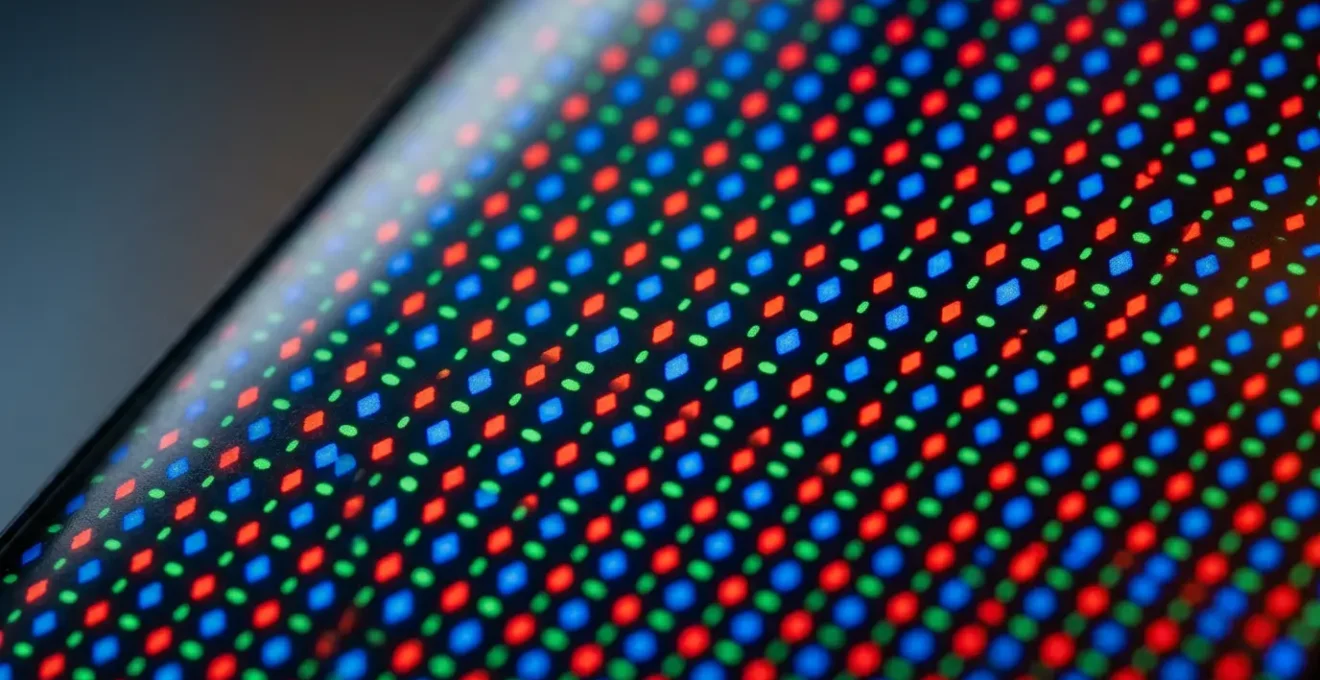
The key to preventing OLED burn-in for heavy users is not just lowering brightness, but actively managing the cumulative stress on individual subpixels caused by static app interfaces.
- Differential aging, where blue subpixels degrade faster, is the primary cause of color shift and image retention, not just brightness alone.
- Static UI elements in apps like TikTok, Instagram, or Google Maps are the main culprits, as they cause uneven pixel wear over hundreds of hours.
Recommendation: Switch your display from “Vivid” to a calibrated “Natural” or “Cinema” mode and implement an aggressive screen-off timer to drastically reduce cumulative pixel ‘on-time’ for static elements.
If you use your phone for over six hours a day, you’ve probably felt that sinking feeling. A faint ghost of the TikTok or Instagram UI lingers on a grey background, or the status bar icons seem permanently etched into your display. You’ve followed the standard advice: you use dark mode, you’ve tried lowering the brightness, and you have a short screen timeout. Yet, the screen degradation, or “burn-in,” seems inevitable. This is a common frustration for power users whose usage patterns push modern OLED screens to their absolute limits.
The generic tips, while not wrong, fail to address the core of the problem for a heavy user. They treat the symptom, not the cause. The issue isn’t just about using your screen a lot; it’s about *how* you use it. The persistence of static interface elements, the color science of different display modes, and the extreme stress of outdoor viewing all contribute to a process far more complex than simple screen aging.
But what if the real solution wasn’t just a checklist of basic settings, but a deeper understanding of the technology? What if, by grasping the science of subpixel wear, you could develop a preventative strategy tailored to your intense usage? This guide moves beyond the platitudes. We will dissect the mechanisms of OLED degradation—specifically differential aging and cumulative pixel stress—to provide a scientific framework for preserving your display’s integrity. We will explore why certain color modes are more damaging than others, how to optimize your screen for both accuracy and longevity, and how your phone’s hardware can be your greatest ally or enemy in this fight. This is your guide to keeping your screen pristine, not by using it less, but by using it smarter.
This article provides a structured approach to understanding and combating OLED degradation. Explore the sections below to master each aspect of screen preservation.
Summary: A Heavy User’s Scientific Guide to OLED Longevity
- Why Does Dark Mode Save 30% Battery on OLED but Nothing on LCD?
- Why Does “Vivid Mode” Make Red Jumpers Look Orange?
- How to Set Your Screen Profile for Print-Ready Photography?
- LTPO or LTPS: Which Screen Tech Is Essential for All-Day Battery?
- How to Read Your Screen in Direct Sunlight Without Overheating the Phone?
- The Screen Defect That Devalues Used Phones by 40% in the UK
- Cinema Mode or Auto: Which Respects the Director’s Vision?
- Why Clothes Look a Different Colour on Your Phone Screen?
Why Does Dark Mode Save 30% Battery on OLED but Nothing on LCD?
The fundamental difference between OLED (Organic Light Emitting Diode) and LCD (Liquid Crystal Display) technology is the source of illumination. An LCD screen uses a single, constant backlight to illuminate all its pixels, which then act as shutters to block or allow light through. Whether a pixel is black or white, the backlight is always on, consuming a consistent amount of power. In contrast, each pixel in an OLED display generates its own light. To display black, an OLED pixel simply turns off completely. It consumes no power. This is the secret to dark mode’s efficiency.
When you enable dark mode, the large black areas of the user interface are composed of millions of turned-off pixels. This directly translates to significant energy savings. However, the extent of these savings is not uniform; it’s highly dependent on screen brightness. For instance, Purdue University research found that at 100% brightness, switching to dark mode can save 39-47% of battery power. But at a more typical indoor brightness of 30-50%, the savings plummet to just 3-9%. This is because the power draw of an OLED display is not linear. As Professor Charlie Hu of Purdue University explains, “Lowering the brightness level reduces the OLED display power draw exponentially.”
For heavy users, this means dark mode is a valuable tool, but not a panacea. It’s most effective when combined with manual brightness control. More importantly, from a burn-in prevention perspective, the “off” state of black pixels means they are not aging. By using dark themes, you are reducing the cumulative ‘on-time’ for a significant portion of your screen, directly contributing to its long-term health.
Why Does “Vivid Mode” Make Red Jumpers Look Orange?
Most flagship phones default to a “Vivid” or “Saturated” color profile. This mode is designed to make the screen pop in a retail environment, with vibrant, eye-catching colors that often deviate significantly from reality. The reason your red jumper might look fluorescent orange is due to an intentionally expanded color gamut. This mode pushes colors, especially reds and greens, beyond the standard sRGB or DCI-P3 color spaces to create a hyper-realistic effect. While visually impressive at first glance, this comes at a significant cost to both color accuracy and screen longevity.
The core of the problem lies in the organic materials used for subpixels. Specifically, blue organic phosphorescent materials are significantly less efficient and have a shorter functional lifespan than their red and green counterparts. To achieve the same level of perceived brightness, the blue subpixel must be driven with more voltage. “Vivid” modes exacerbate this by pushing all colors to their brightest possible values, placing immense and disproportionate stress on the already vulnerable blue subpixels.
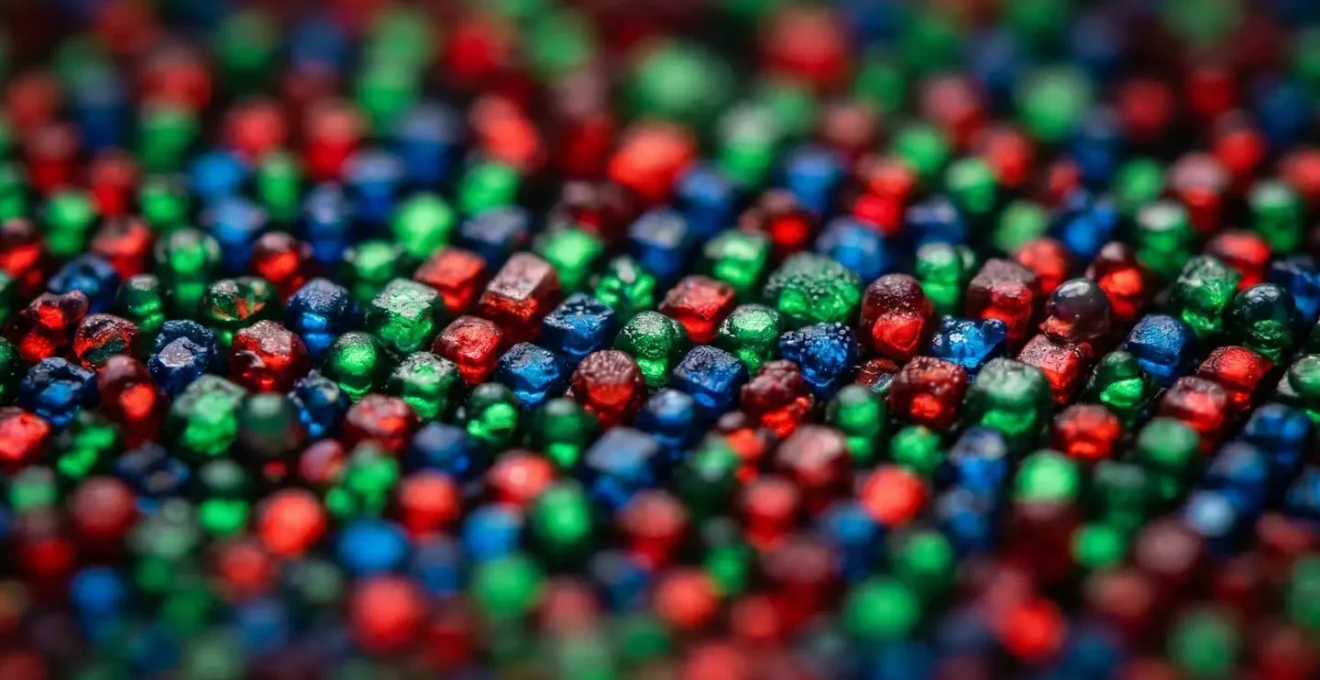
This accelerated degradation of blue subpixels is the primary driver of “differential aging”—the root cause of most burn-in and color shifting issues. As the blue subpixels dim faster than the red and green ones, the display’s overall color balance shifts. Whites begin to take on a yellowish or pinkish hue, and the screen is no longer capable of reproducing accurate colors. That vivid red jumper starts looking orange because the screen has lost the blue component needed to mix the correct shade of red. For a heavy user, sticking with “Vivid” mode is like constantly redlining your car’s engine; it guarantees premature failure.
How to Set Your Screen Profile for Print-Ready Photography?
For anyone serious about photography, whether for print or digital sharing, screen accuracy is non-negotiable. What you see on your screen must be a faithful representation of the captured image. The “Vivid” modes discussed earlier are the enemy of accuracy. To achieve a print-ready workflow, you must switch to a color profile calibrated to an industry standard, typically sRGB for web content or DCI-P3 for modern HDR video and photography.
On most Android phones, this is found in the display settings under a name like “Natural,” “Basic,” or “Cinema.” On iPhones, the system automatically manages color spaces. Selecting this mode ensures that you are editing your photos within a defined color gamut, preventing you from making adjustments based on a distorted, over-saturated image. A photo edited on a “Vivid” screen will often look dull and undersaturated when viewed on any other calibrated device or when printed.
Beyond accuracy, this choice has profound implications for screen longevity. Calibrated profiles are inherently less stressful on the OLED panel. They don’t push colors to their absolute extremes, which reduces the voltage required, especially for the volatile blue subpixels. Data shows that blue subpixels require 20-30% more voltage to reach peak brightness and degrade up to 1.8 times faster. By choosing a “Natural” profile, you are not only getting accurate colors for your photos but also actively extending your display’s lifespan by reducing the subpixel voltage stress. This turns a professional choice into a powerful preventative measure against burn-in.
Action Plan: Your Display Longevity Audit
- Color Profile Check: Go to Display Settings. If it’s on “Vivid” or “Saturated,” immediately switch to “Natural,” “Cinema,” or “Basic.” This is the single most impactful change you can make.
- Brightness Habit Audit: Disable “Auto-Brightness” for a week. Manually set it to the lowest comfortable level for your environment (often 30-40% indoors). This retrains your perception and drastically cuts pixel wear.
- UI Element Inventory: Identify the top 3 apps you use. Note their static UI elements (e.g., navigation bar, status icons, social media buttons). These are your screen’s biggest threats.
- Screen-Off Timer: Check your “Screen timeout” or “Sleep” setting. If it’s longer than 30 seconds, reduce it. This minimizes the time static UI elements are displayed while the phone is idle.
- Wallpaper & Keyboard: Set a pure black wallpaper (#000000). If your keyboard app supports it, choose a theme with a pure black background. This turns off millions of pixels during common tasks.
LTPO or LTPS: Which Screen Tech Is Essential for All-Day Battery?
When discussing display technology, the conversation often focuses on resolution and color. However, for a heavy user concerned with battery life and screen health, the backplane technology is arguably more important. The two dominant types in modern flagship phones are LTPS (Low-Temperature Polycrystalline Silicon) and LTPO (Low-Temperature Polycrystalline Oxide). While both enable high-resolution OLED displays, LTPO offers a critical advantage: variable refresh rate (VRR).
An LTPS backplane operates at a fixed refresh rate, typically 60Hz or 120Hz. This means the screen is redrawing itself 60 or 120 times every second, no matter what is being displayed. This is incredibly inefficient when you’re looking at a static photo or reading an email, as it wastes energy redrawing an unchanging image. LTPO solves this by combining the efficiency of LTPS transistors with the low leakage of IGZO (Indium Gallium Zinc Oxide) transistors. This hybrid structure allows the display to dynamically adjust its refresh rate on the fly, from as high as 120Hz for smooth scrolling down to as low as 1Hz for a static lock screen.
This intelligent adaptation is essential for all-day battery life. By dramatically lowering the refresh rate during periods of low activity, an LTPO display significantly reduces power consumption. In fact, LTPO panels are approximately 10-20% more power-efficient than standard flexible display screens. For a power user, this efficiency means more screen-on time from a single charge. Indirectly, it also contributes to screen health; less power consumption often correlates with less heat generation, which is a known accelerator of OLED degradation. When choosing your next device, a screen with LTPO technology should be considered an essential feature for longevity and endurance.
How to Read Your Screen in Direct Sunlight Without Overheating the Phone?
One of the biggest challenges for any mobile user is screen visibility in direct sunlight. Modern OLED displays have a feature to combat this, often called High Brightness Mode (HBM). When ambient light sensors detect intense sunlight, they can push the screen’s brightness far beyond the maximum level you can set manually—often reaching 1,000 nits or more. While this makes the screen legible, it comes at a tremendous cost. HBM is the single most stressful condition for an OLED display.
Operating in HBM is a triple threat to your device. First, it drives the pixels at maximum voltage, dramatically accelerating the differential aging process, especially for the blue subpixels. Second, this intense power draw generates a significant amount of heat. Heat is a catalyst for the chemical reactions that degrade the organic compounds in the display, permanently reducing their lifespan and efficiency. Third, the excess heat can cause the phone’s processor to thermally throttle, leading to sluggish performance just when you need it most. As the experts at Black Screen Blog state succinctly, “Prolonged HBM usage is the single fastest way to induce burn-in for a heavy user.”
So, how can you read your screen outdoors without destroying it? The solution requires a strategic, not a brute-force, approach. Instead of relying on HBM, seek shade whenever possible. If you must use your phone in the sun, angle the screen away from the direct light to reduce glare. Using a light-themed UI temporarily can sometimes improve legibility over a dark theme in bright conditions, as the white background can help overpower reflections. Finally, keep usage sessions short. A quick map check is far less damaging than an hour of scrolling social media under the midday sun. Treating HBM as an emergency feature, not a standard operating mode, is crucial for long-term screen health.
The Screen Defect That Devalues Used Phones by 40% in the UK
Beyond the functional frustration, OLED burn-in has a significant and direct financial consequence: it devastates your phone’s resale value. The second-hand market is incredibly sensitive to screen condition. A device with a pristine, flawless display can command a premium, while one with even minor image retention will be heavily penalized. This isn’t just a minor cosmetic issue; it’s seen as a major hardware fault.
When a potential buyer or a trade-in service inspects a used phone, the screen is the first thing they check. They will often display a full-screen grey or white image specifically to hunt for signs of burn-in—ghostly icons from the status bar, a faint outline of a keyboard, or discoloration from a navigation app’s UI. The moment these defects are spotted, the phone’s value plummets. While the exact figure varies, phone depreciation analysis shows that screen damage can reduce a phone’s resale value by 30-50%. This places burn-in in the same category of severity as a cracked screen.
This massive drop in value, which can easily equate to hundreds of pounds for a recent flagship model, reframes the cost of neglecting screen care. The preventative measures discussed throughout this guide—using calibrated color profiles, managing brightness, and avoiding prolonged static content—are not just about maintaining a pleasant user experience. They are a direct investment in preserving the tangible, monetary value of your device. For a heavy user who upgrades every couple of years, preventing burn-in can effectively save them a significant portion of their next phone’s cost. The best way to protect your investment is to protect your screen from day one.
Cinema Mode or Auto: Which Respects the Director’s Vision?
When settling in to watch a movie on your phone, you’re often presented with display options like “Auto,” “Vivid,” or “Cinema.” While “Auto” or “Vivid” might seem more impressive with their bright, punchy colors, they are actively disrespecting the creative intent of the filmmaker. “Cinema Mode” (or “Filmmaker Mode” on some devices) is the only choice that truly respects the director’s vision. This mode is designed to disable most post-processing and align the display’s color and brightness with industry standards like DCI-P3 and the D65 white point, showing you the movie exactly as it was graded and intended to be seen in the editing suite.
Choosing “Cinema Mode” is not just an aesthetic choice for cinephiles; it’s a smart preventative measure for your OLED screen. “Vivid” and “Auto” modes often oversaturate colors and crank up the brightness, putting unnecessary stress on the pixels. “Cinema Mode,” by contrast, adheres to a more controlled and often dimmer standard of brightness, which is less taxing on the organic compounds. This is particularly relevant for heavy users who might binge-watch entire seasons.
This simple choice can have a dramatic long-term impact. The habits you form determine your screen’s destiny. OLED longevity research shows that with poor habits—such as using high brightness and displaying static content for 8+ hours daily—burn-in can appear in as little as 6 to 12 months. Conversely, with good prevention practices, like using “Cinema Mode” for media and keeping brightness in check, you might never see burn-in, even after five years of use. By opting for color accuracy over artificial vibrancy, you are not only getting a more authentic viewing experience but also adding years to the life of your display.
Key Takeaways
- OLED wear is cumulative; short, repeated exposure to static images is as damaging as one long session.
- “Vivid” color modes accelerate the aging of vulnerable blue subpixels, leading to color shift and burn-in.
- Preventing burn-in is not about using your phone less, but about strategically minimizing stress on the pixels through smart settings (e.g., Natural/Cinema mode, aggressive screen timeout).
Why Clothes Look a Different Colour on Your Phone Screen?
The final, and perhaps most relatable, symptom of OLED degradation is color inaccuracy in everyday life, like online shopping. You see a forest green sweater on your screen, but what arrives is an olive-drab disappointment. This discrepancy is a direct result of the differential aging we’ve discussed. Your screen is no longer a neutral window to the digital world; it’s a distorted lens, tinted by the uneven wear of its own pixels.
A landmark 21-month burn-in test on an OLED monitor by TechSpot provides stark, clinical proof of this process. In the controlled test, where static content was displayed for over 5,000 hours, the green subpixel degraded fastest, followed by blue, with red being the most resilient. This uneven wear meant that after just six months, permanent image retention was visible, and the panel’s ability to reproduce accurate colors was compromised. The screen had lost a percentage of its “green” and “blue” capability, permanently altering how it mixed colors.
This brings us to the most critical concept for any heavy user: OLED wear is cumulative. It’s not about a single long session; it’s the sum of all the seconds and minutes that a specific pixel is active. As OLED technology research puts it, “OLED wear is cumulative, it does not matter if the static image is displayed for ten hours straight or for one hour a day over ten days. The total ‘on-time’ for those specific pixels adds up.” For a heavy TikTok or Maps user, the pixels under the static UI buttons are accumulating ‘on-time’ at a vastly accelerated rate compared to the pixels in the center of the screen. This is the ticking clock that leads to burn-in. Preventing it requires a conscious, daily effort to minimize this cumulative, uneven stress across your entire display.
By understanding the science of subpixel aging and implementing these preventative strategies, you can take control of your device’s destiny. Your next step is to actively apply these principles, turning this knowledge into a set of daily habits that will preserve your screen’s performance and value for years to come.