
Designing for users with motor impairments isn’t about bigger buttons; it’s about engineering for the physical reality of tremors and joint stiffness.
- Standard touch targets that plateau for able-bodied users continue to yield significant performance gains for users with motor disabilities, even up to 30mm.
- Poor sensory feedback and buttons placed too close together dramatically increase error rates and can lead to severe consequences like accidental financial transactions.
Recommendation: Move beyond minimum WCAG compliance by using heatmap analysis and user data to design interfaces that forgive errors and reduce the biomechanical cost for every user.
As a UI designer in the UK, particularly within sectors like the NHS or elderly care, you know accessibility is non-negotiable. The common advice is to “make buttons bigger” and adhere to WCAG guidelines. We are told to aim for 44px targets, add spacing, and our job is done. But this approach often misses the fundamental point. It treats accessibility as a checklist rather than a deep exercise in empathy and human-centred engineering.
What if the key wasn’t just following a rule, but understanding the biomechanical reality behind it? For a person with arthritis, a small button isn’t a minor inconvenience; it’s a source of physical pain and a barrier to digital autonomy. For someone with hand tremors, an interface without clear feedback isn’t just “unresponsive,” it’s a confusing landscape of missed taps and unintended actions. The true challenge isn’t meeting a minimum pixel count, but designing for the physical reality of reduced motor control, joint stiffness, and wavering precision.
This guide moves beyond the platitudes. We will explore the science behind why standard targets fail, how to identify these friction points in your own applications, and how to make design decisions—from button placement to feedback mechanisms—that are rooted in the physical and neurological experience of your users. We will transform your understanding from simply knowing the standards to deeply comprehending their human impact.
To navigate this deep dive into accessible design, this article breaks down the core challenges and solutions. The following sections will guide you from the underlying science to practical, legally compliant implementation for the UK market.
Summary: A Designer’s Guide to Motor Accessibility on Mobile
- Why Do Standard Touch Targets Fail Users With Tremors?
- How to Use Heatmaps to Identify Frustration Clicks?
- The Design Error That Causes Accidental Money Transfers
- FAB or Tab Bar: Which Is Easier for One-Handed Use?
- How to Space Interactive Elements to Reduce Error Rates by 30%?
- Why Does “Mushy” Feedback Cause 20% More Typos in Emails?
- Why Are Small Buttons the #1 Complaint from Users Over 50?
- How to Design Accessible Mobile Apps That Meet UK Legal Standards?
Why Do Standard Touch Targets Fail Users With Tremors?
Standard design guidelines are often built around the average user, but for individuals with hand tremors, the “average” interaction model breaks down completely. A tremor introduces involuntary oscillations, meaning a finger approaching a screen doesn’t travel in a straight line. Instead, it makes a series of micro-corrections and movements around the intended target. When a button is small, the probability of the final tap landing outside its boundary increases exponentially. This isn’t a matter of carelessness; it’s a matter of physics.
The solution goes beyond simply meeting a minimum size. A pivotal study tested button sizes from 10mm up to 30mm for users with and without motor disabilities. While non-disabled users’ performance hit a ceiling at 20mm, users with disabilities showed continuous, significant improvement all the way up to 30mm buttons. Their error rate dropped from 19% at 20mm to just 8% at 30mm. This demonstrates that for these users, “bigger is better” holds true far beyond standard recommendations, as larger targets are more forgiving of the tremor’s oscillations.
In fact, focused research on Android accessibility for tremor users found that implementing larger targets and smart disambiguation logic could lead to a staggering 65% error rate reduction. This isn’t a marginal improvement; it’s the difference between a usable app and a completely inaccessible one. The goal is to create a target large enough to successfully register a hit despite the “noise” of the tremor, turning a frustrating experience into a successful one.
How to Use Heatmaps to Identify Frustration Clicks?
While lab studies provide the “why,” analytics tools like heatmaps can show you the “where” in your own application. For users with motor impairments, a heatmap doesn’t just show where users tap; it reveals a story of struggle. Instead of a single, clean red spot on a button, you might see a scattered pattern of clicks surrounding the intended target. This pattern is a clear sign of “frustration clicks”—repeated, unsuccessful attempts to hit a small or poorly placed element.

This visual data is an invaluable diagnostic tool. The spray of clicks around a target is a direct measure of the interface’s biomechanical cost. Each missed tap represents a moment of frustration and a physical effort that didn’t achieve its goal. By identifying these hotspots, you can prioritize which screens and components are causing the most significant barriers for users with tremors or arthritis. It allows you to move from a general accessibility policy to targeted, data-driven interventions.
Once you’ve identified a problem area, the solution lies in applying systematic design principles that reduce motor planning and execution load. The following checklist provides a concrete starting point for improving your interface based on what you find.
Action plan: Key points to verify for motor accessibility
- Visual Touch Target Size: Does every interactive element visually and physically meet accessible size requirements to accommodate imprecise pointing?
- Persistent Element Location: Are critical action buttons (like ‘Next’, ‘Submit’, or ‘Home’) always in the same place, reducing the cognitive and motor load needed to find them?
- Expanding Section Closure: Does the UI avoid patterns where tapping one area causes the layout to shift unpredictably, forcing the user to re-plan their next physical action?
- Adjacent Icon Visual Distance: Is there enough clear, non-interactive space between tappable elements to create a buffer and prevent accidental activation of the wrong control?
The Design Error That Causes Accidental Money Transfers
The consequences of poor touch target design are not just about frustration; they can have severe, real-world impacts. Consider a banking or e-commerce app. When critical action buttons like “Confirm Transfer” and “Cancel” are placed close together and sized inadequately, the risk of a catastrophic error skyrockets for a user with motor impairments. A slight tremor or a moment of reduced dexterity from an arthritic joint can be the difference between paying a bill and accidentally sending money to the wrong recipient.
This scenario isn’t hypothetical. As the Siteimprove Accessibility Team points out, the stakes are incredibly high. In their analysis, they state:
Users with Parkinson’s, arthritis, or tremors can’t hit small targets reliably. A checkout flow with 32px buttons? They may not be able to complete the purchase.
– Siteimprove Accessibility Team, Motor Impairments and Mobile UI: The Touch Target Problem
This highlights a critical design flaw: placing destructive or irreversible actions adjacent to common or safe actions without sufficient size and spacing. The fundamental principle here is error forgiveness. Your interface must be designed to assume that errors *will* happen and to minimize their potential damage. This can be achieved through several strategies: increasing the size and spacing of opposing actions, using confirmation dialogues for critical tasks, and ensuring that the “safer” option (e.g., “Cancel”) is easier to hit.
FAB or Tab Bar: Which Is Easier for One-Handed Use?
The debate between a Floating Action Button (FAB) and a bottom tab bar is a common one in UI design, but it takes on new significance when viewed through the lens of motor impairment and one-handed use. The ease of reaching a target depends heavily on how the device is held. For one-handed use, the thumb operates within a natural arc, with the bottom of the screen being the most comfortable and stable zone.
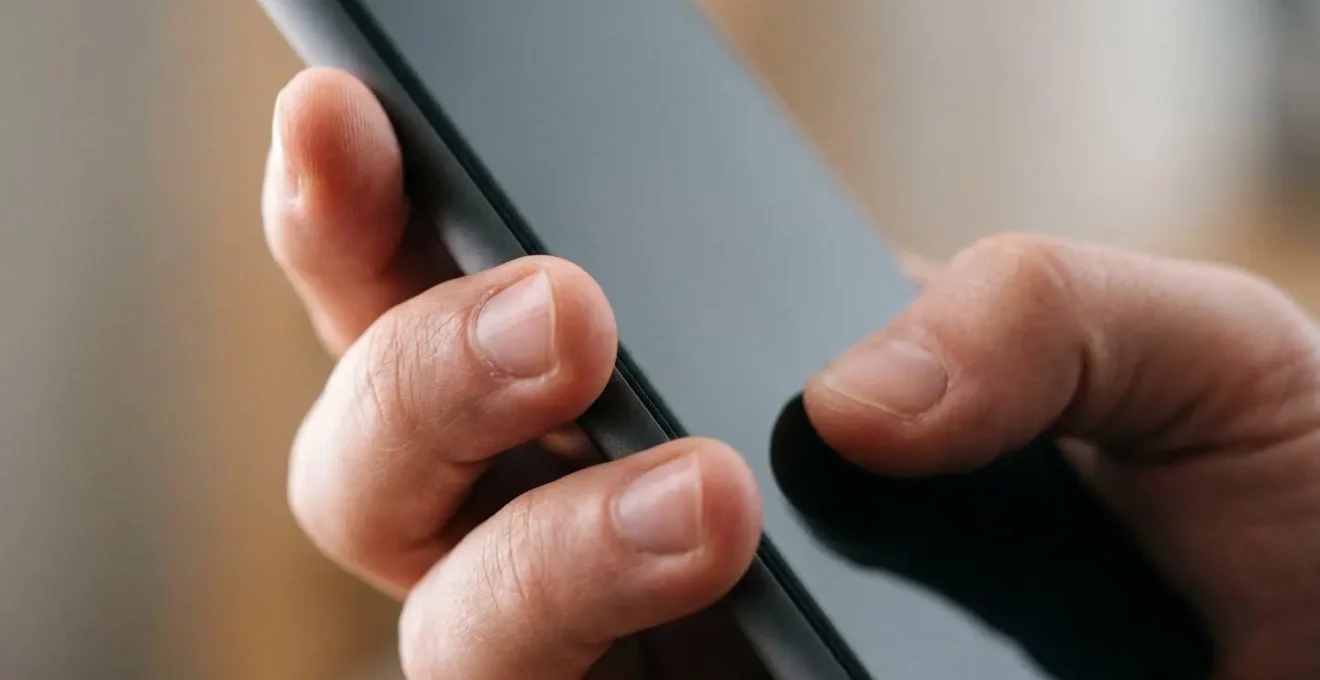
A bottom tab bar excels in this context. Its elements are placed directly within the thumb’s primary zone of comfort and control. This requires minimal hand repositioning, ensuring a stable grip which is crucial for users who may have reduced grip strength due to arthritis. Each tap is predictable and requires low physical effort.
A Floating Action Button (FAB), while visually prominent, presents a more complex challenge. Often placed in the bottom-right, it can be easy to reach. However, if it reveals a secondary menu of actions that expand upwards or sideways, it can force the user into awkward thumb stretches or require them to shift their grip on the phone. This destabilization is a significant problem for someone with tremors, as a less secure grip can amplify involuntary movements. Therefore, while a simple FAB for a single, primary action might be acceptable, a tab bar generally offers a more stable, predictable, and ergonomically sound solution for core navigation, especially for users with motor challenges.
How to Space Interactive Elements to Reduce Error Rates by 30%?
A common recommendation for reducing tap errors is to increase the spacing between interactive elements. The underlying principle is Fitts’s Law, which states that the time to acquire a target is a function of the distance to and the size of the target. Intuitively, more space should mean fewer mistakes. However, research into the specifics of motor disabilities reveals a more nuanced reality.
While spacing is helpful, its impact can be secondary to the size of the target itself. One study specifically compared the effect of gap sizes (1mm vs. 3mm) versus button sizes (20mm, 25mm, 30mm) for users with motor disabilities. The surprising finding, as detailed in a touch screen performance study, was that increasing the gap size did not have a statistically significant effect on error rates. However, increasing the button size had a dramatic effect, with the miss rate for disabled users falling from 19% at 20mm to just 8% at 30mm.
This doesn’t mean spacing is useless. Spacing is still critical for defining the tappable area and preventing visual clutter. However, the data suggests that if you have a limited amount of screen real estate, you will achieve a much greater reduction in errors by allocating that space to making the buttons themselves larger, rather than just widening the empty space between them. For a designer, this provides a clear priority: first, maximize the target size of each control. Then, ensure there is clear visual separation. This approach, grounded in Fitts’s Law research from Nielsen Norman Group, ensures you’re investing your design effort where it will have the most significant impact on usability.
Why Does “Mushy” Feedback Cause 20% More Typos in Emails?
A successful tap is more than just a physical action; it’s a closed sensory feedback loop. When you press a key, your brain expects a confirmation—a click, a vibration, or a visual change. This confirmation tells your brain, “The action was successful; you can move on to the next one.” When that feedback is vague, delayed, or non-existent—what we can call “mushy” feedback—the loop is broken. The user is left wondering, “Did my tap register?”
This uncertainty is a major problem for users with motor impairments or reduced sensation in their fingertips, a common issue with age and conditions like arthritis. As the Equip2Adapt Accessibility Team notes, “For users with motor impairments or reduced sensation… the finger ‘feels’ nothing, so the brain doesn’t register a successful press, leading to repeated taps or missed letters.” This leads directly to errors like typos, double-taps, or giving up on a task altogether.
The effect is compounded by the natural decline in touch precision. For example, some data shows that touch precision can decrease with age, making clear feedback even more critical. An interface without crisp, immediate feedback forces the user to rely solely on visual confirmation, increasing cognitive load and slowing them down. Implementing clear, multi-modal feedback (e.g., a visual state change combined with subtle haptics) is not a decorative feature. It is a foundational component of a usable interface, providing the confidence and clarity needed for users to interact effectively, especially when their physical abilities are challenged.
Why Are Small Buttons the #1 Complaint from Users Over 50?
When users over 50 report that mobile buttons are too small, it’s not merely a matter of preference. It’s a direct reflection of physiological changes that impact motor control. Conditions like arthritis, which affect millions in the UK, are a primary cause. Joint stiffness and inflammation directly impede the fine, precise movements required to interact with a standard smartphone screen. Data from studies on arthritis impact show that joint stiffness causes a significant 25-40% reduction in fine motor control. This turns what should be a simple tap into a difficult and sometimes painful task.
A small touch target demands a level of precision that these users may no longer possess. The finger’s contact area with the screen might be larger due to swelling, and the ability to isolate a single point is diminished. This results in missed targets, accidental presses of adjacent buttons, and a profound sense of frustration. The complaint about “small buttons” is a user’s translation of a complex biomechanical problem: the interface is demanding a higher degree of motor precision than their body can reliably deliver.

For designers, this feedback is a crucial signal. It means our default assumptions about target sizes are failing a significant portion of the population. Ignoring this complaint is to deny these users the digital autonomy that technology promises. Designing larger, more forgiving targets is not “dumbing down” the interface; it is a necessary adaptation to the physical reality of a diverse user base, ensuring that a smartphone remains a tool for connection and independence, not a source of exclusion.
To keep in mind
- The primary goal of accessible button design is to reduce the ‘biomechanical cost’ for users, accounting for the physical reality of tremors and joint stiffness.
- Increasing button size yields more significant error reduction for users with motor impairments than simply increasing the spacing between them.
- Clear, immediate, and multi-modal feedback is not a cosmetic feature but a functional necessity to close the sensory loop and confirm successful interaction.
How to Design Accessible Mobile Apps That Meet UK Legal Standards?
After exploring the human-centered reasons for larger, clearer touch targets, it’s crucial to ground these principles in the legal and technical standards you must follow as a UK-based designer. For public sector bodies, including NHS-related applications, and increasingly as a best practice for all commercial apps, compliance with the Web Content Accessibility Guidelines (WCAG) is essential. The Equality Act 2010 also mandates providing reasonable adjustments for disabled people, and an inaccessible app can be seen as a failure to do so.
The most relevant standard here is WCAG 2.2 Success Criterion 2.5.8, which addresses minimum target size. It provides a clear, measurable baseline for your work. To meet the widely accepted Level AA standard, the target size for all interactive elements must be at least 24 by 24 CSS pixels. This is the absolute minimum to ensure a basic level of accessibility.
However, as we’ve seen throughout this guide, the minimum is often not the optimum. The guidelines themselves point towards a better user experience. For enhanced accessibility (Level AAA), WCAG recommends a target size of at least 44 by 44 CSS pixels. This aligns more closely with the longstanding recommendations from Apple (44×44 points) and Google (48x48dp) and, more importantly, better serves users with significant motor impairments. Therefore, while the WCAG 2.2 Success Criterion 2.5.8 gives you a legal floor of 24x24px, your professional goal should be to exceed it wherever possible, aiming for 44x44px as your default.
By moving beyond the minimums and truly understanding the ‘why’ behind the guidelines, you can create mobile experiences that are not only compliant but genuinely inclusive and empowering for all users.